Subscription, services and credits
Every Karizma One project is tied to a subscription that sets its due date and the services included. From the Services page of the project settings, you buy add-on services and check the credit pool that some services and the AI assistant draw on.
Services and credits: Settings › Integrations › Services, available to the project's Super Admin and Admin roles.
There is no billing page or wallet in your account: invoices and renewal requests arrive by e-mail.
Renew the subscription
The due date cannot be changed from the application. Renewal works like this:
- When the due date comes, you receive a renewal request by e-mail (in French).
- You pay the renewal as described in that e-mail.
- Once the payment is confirmed, the Karizma team extends the subscription.
To find out your due date or for any question about your plan, contact your Karizma representative.
What happens when the subscription expires
When a project's subscription has expired:
- the project card on the Projects page shows the red Expired tag;
- the branch sidebar shows Your subscription has expired. Please renew your subscription to continue using the service. and the branch list is disabled;
- most buttons of the branch toolbar are disabled, with the tooltip This project subscription has expired;
- services can no longer be activated or changed: Your subscription has expired. Please renew to manage services.
Renew ahead of time: until the subscription is extended, you can no longer act on the project's branches.
Buy a service
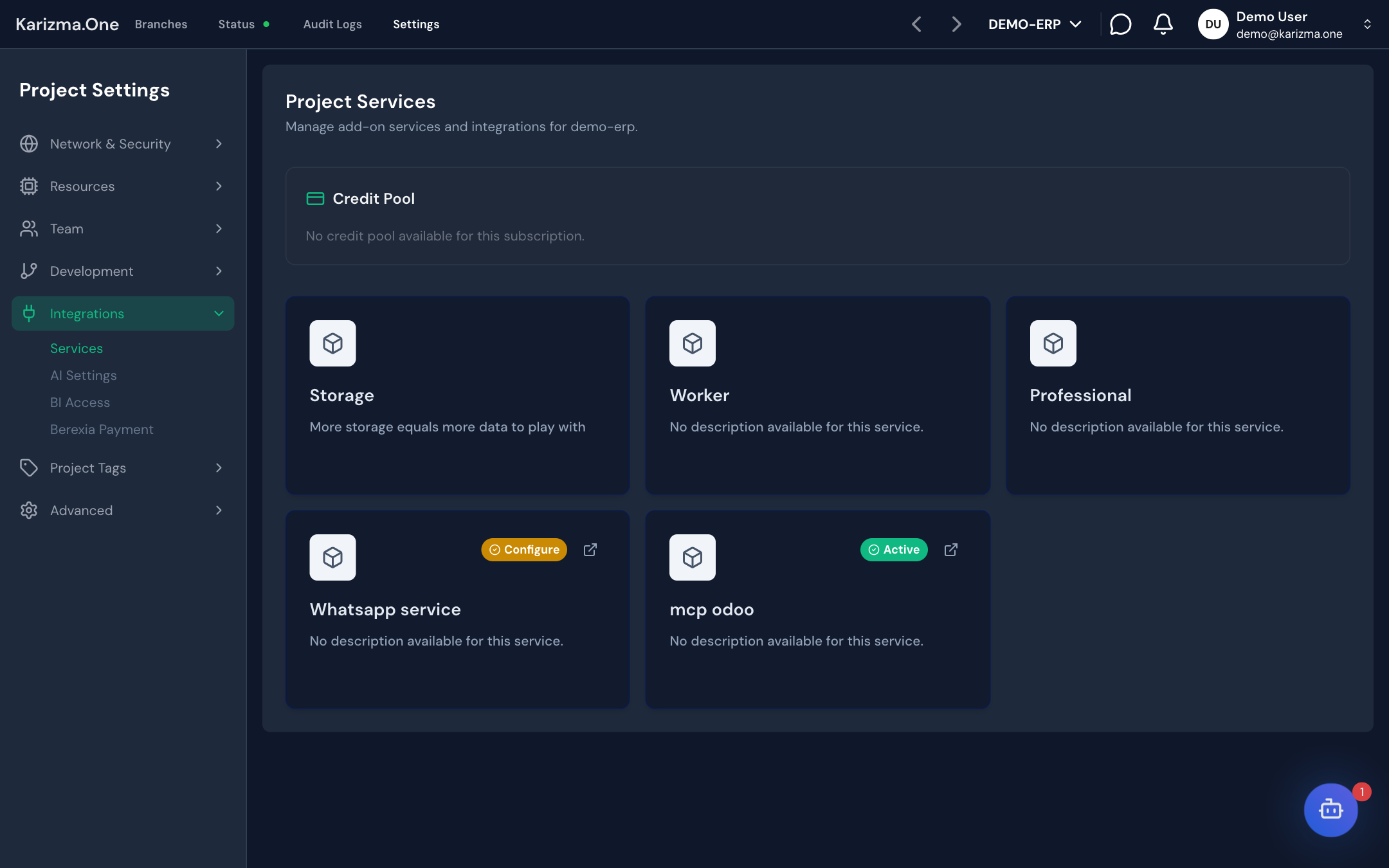
The Settings › Integrations › Services page (titled Project Services) lists the services offered for your project. Each card has a badge:
| Badge | Meaning |
|---|---|
| Active (green) | The service is active. |
| Configure (yellow) | The service is bought or available, but not activated yet. |
| None | The service is not bought. |
The services offered, their tiers and prices depend on your subscription: the list can differ from one project to another. Each service is described in Services.
To buy a service:
- Click the service card.
- For some services, pick the Odoo company concerned in Select Company, then click Continue.
- In Select Plan, pick a tier (and a quantity when the service allows it), then click Proceed to Payment.
- In Payment Method, check the amount (Amount Due), pick a payment method, then click Confirm & Pay.
Payment methods
| Method | How it works |
|---|---|
| Bank transfer | The Order Confirmed screen shows the Reference to include in transfer and the bank accounts (holder, RIB, IBAN, with a copy button). Make the transfer with that reference: the service is activated once the Karizma team has confirmed the transfer. |
| Online payment | You are redirected to the secure Berexia payment page to pay online. |
The methods offered are configured by Karizma. An order started but not paid resumes at the payment step; a confirmed order waiting for its transfer shows the bank details again.
Buying a service requires an active paid subscription on the project. Only the project's Super Admins and Admins can pay for an order.
Activate, upgrade or deactivate a service
- A service that is bought but not active yet (Configure badge) is activated with Activate Now. For most services (other than CDN and Load Balancer), activation installs the matching module on the production Odoo instance: the production branch must be deployed.
- When the service allows it, Upgrade reopens the wizard with higher tiers only (no downgrade).
- When the service allows it, Deactivate stops it after a confirmation.
Resources (CPU, Storage, Stagings) are bought the same way, with a quantity, and increased with Upgrade. See Resources.
Follow the credit pool
Some services are billed by usage (for example WhatsApp, where 1 credit is 1 message sent). They draw on the project's credit pool, shown in the Credit Pool card at the top of the Services page.
| Item | Content |
|---|---|
| Additional Credits | Credits bought on top of the plan (Purchased top-ups). |
| Available Balance | Balance you can spend: credits included in the plan + additional credits. |
| Usage This Period | Usage per service in the current period (for example WHATSAPP -12.00). |
| Credit History | Credit movements, filterable by Type (Plan Grant, Purchase, Usage, Refund, Adjustment) and by date (From, To). |
How credits work:
- plan credits come with the subscription and are reset to the plan's level at each renewal (Plan Grant lines);
- additional credits are kept from one renewal to the next;
- usage draws on plan credits first, then on additional credits;
- the balance can never go negative: usage that exceeds the available balance is refused.
To add credits, contact your Karizma representative. The message No credit pool available for this subscription. means the project's subscription has no credit pool.
The SMTP service has its own sending counter and does not draw on the credit pool.
Credits and the AI assistant
The Web IDE's AI assistant runs on a Karizma AI key that belongs to the project. Its budget (in dollars) is prepaid from the project's credits, at a conversion rate ($1 = N credits).
- The budget never resets: once it is used up, calls are refused until it is raised: contact your Karizma representative.
- Super Admins and Admins get a notification at 80% and then at 100% of the budget.
- Revoking the key returns the unspent budget to the project's credits.
Setting up the key and following its usage are handled by the Karizma team: contact your Karizma representative.
See also
- Services
- Notifications for order and renewal e-mails