Notifications
Karizma One keeps you informed in two ways: in-app notifications (the bell at the top right), which arrive in real time, and e-mails. This page explains how to manage notifications and which events trigger them.
The bell sits at the top right of every page, next to your avatar. Each user only sees their own notifications.
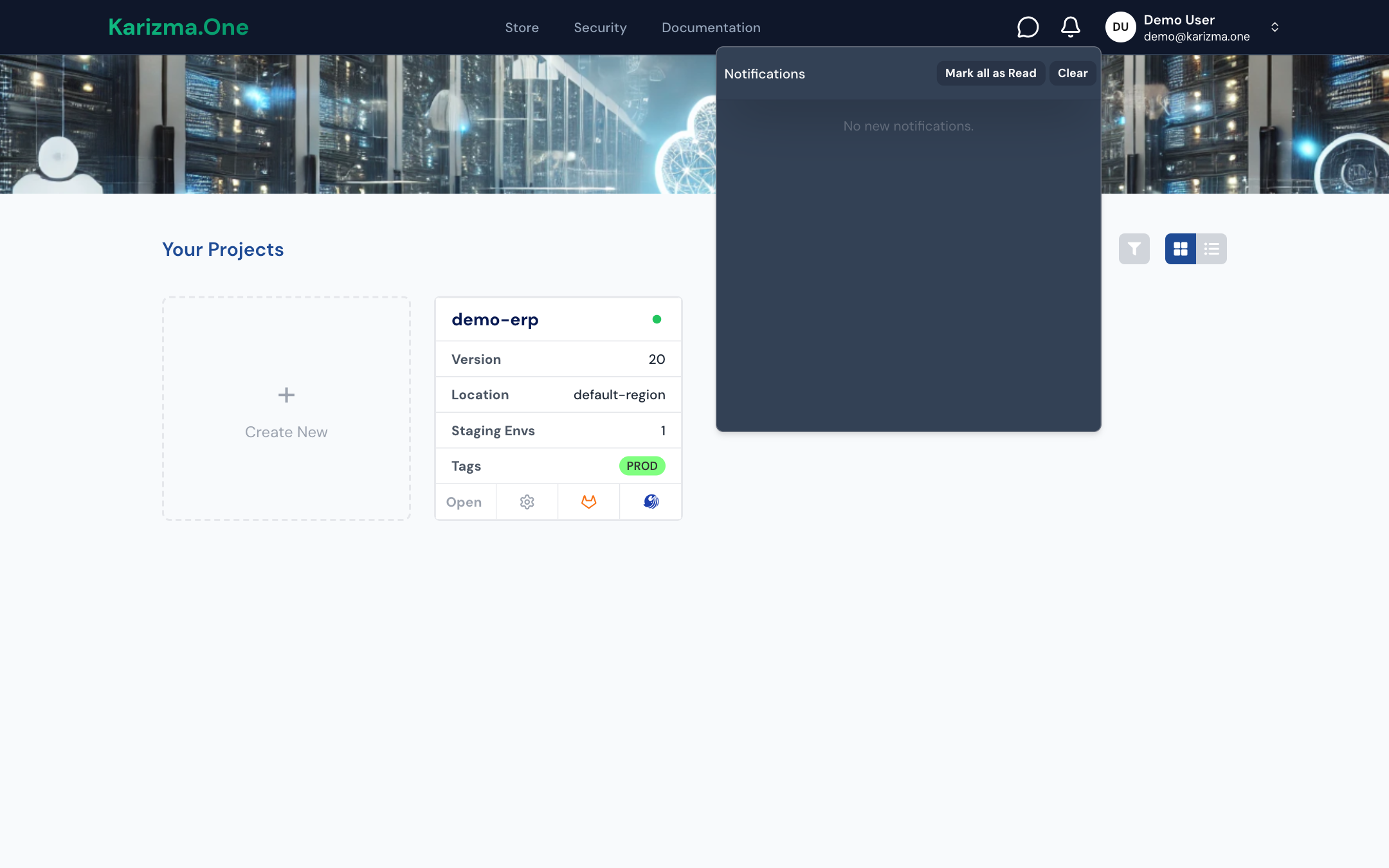
Read and manage your notifications
The badge on the bell shows how many notifications are unread. Click the bell to open the Notifications menu.
Each notification shows:
- a level icon: Info, Success, Warning or Error;
- a title (the type and name of the object concerned, for example the project);
- the message, which you can expand when it is long;
- the date and time.
What you can do:
| Action | Effect |
|---|---|
| Click the notification | Opens the related page and marks the notification as read. |
| Mark as Read | Marks this notification as read. |
| Cross (on hover) | Deletes this notification. |
| Mark all as Read | Marks every notification as read. |
| Clear | Deletes all notifications. |
More notifications load as you scroll. No new notifications. is shown when the list is empty.
Clear deletes all your notifications, with no confirmation. Use Mark all as Read if you only want to clear the badge.
Events that notify you
| Event | Who is notified |
|---|---|
| You are added as a collaborator on a project | The person added |
| A new project's Odoo database is deployed | The project owner |
| A project deployment failed | The person who launched it |
| Destroying a staging environment failed | The person who launched it |
| A BI access request is created or failed | The person who requested it |
| The project's Karizma AI key reaches 80% of its budget (Warning), then 100% (Error) | The project's Super Admins and Admins |
| A request is waiting for approval (promotion to production, Odoo version update, submodule added or removed) | The project manager Karizma assigned to the project |
| An order is marked as paid | The order's customer |
To raise the Karizma AI key's budget, contact your Karizma representative.
Activity e-mails
These e-mails follow the Email Notifications switch in your profile: if you turn it off, you no longer receive them.
| Recipient | |
|---|---|
| You've been added as a collaborator in project … | The person added |
| Your Odoo database has been successfully deployed! | The project owner |
| Staging environment deployed: … / … | The person who launched the staging deployment |
| Backup restoration completed successfully. | The person who launched the restore |
| Your project … has reached …% of its storage limit (from 90%) | The project owner |
| … has failed (a background operation failed) | The person who launched the operation |
Account and billing e-mails
These e-mails are sent whatever the state of the Email Notifications switch:
- Welcome, when your account is created (first sign-in);
- Order submitted and order confirmation, with the bank details when you pay by bank transfer;
- Order paid, once the payment is confirmed. For a new-project order, this e-mail contains the activation code you enter when creating the project;
- Renewal request (in French), when your subscription's due date comes.
See Subscription, services and credits.