Profile and connected accounts
Your profile holds your personal details, the external accounts linked to your Karizma One account and the list of projects you can access. It is also where you turn activity e-mails on or off.
Open your avatar menu at the top right, then click Profile. Every profile page is available to any signed-in user.
The user menu
The avatar menu, at the top right of every page, shows your name and e-mail, then:
| Entry | What it does |
|---|---|
| Profile | Opens your profile (/profile). |
| Projects | Goes back to your project list (/projects). |
| Logout | Signs you out and takes you back to the sign-in page. |
Next to the avatar are the chat icon and the notifications bell.
Inside the profile, the left column (User Settings) leads to three pages: Profile, Connected Accounts and Projects.
Edit your details
The Profile page (titled Edit Profile) holds your personal details.
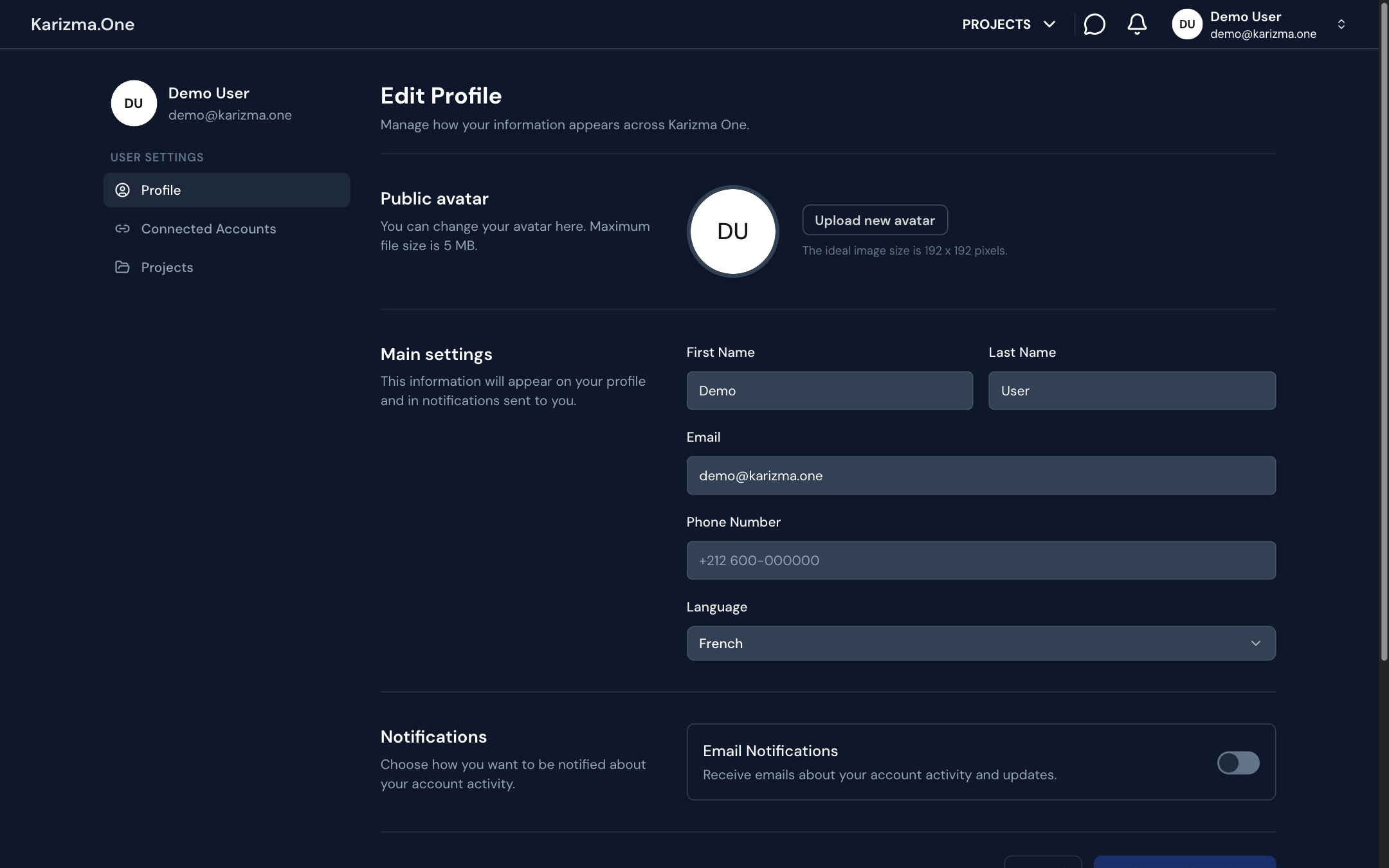
- Under Public avatar, click the avatar or Upload new avatar to change your picture (ideal size: 192 × 192 pixels).
- Under Main settings, update First Name, Last Name, Email, Phone Number and Language (English, French or Arabic). These details appear on your profile and in the notifications sent to you.
- Click Update profile settings. The Cancel and Update profile settings buttons are only enabled once something has changed.
The application interface is in English whatever you pick in Language.
Manage your addresses
The Addresses section keeps your billing and contact addresses.
- Click Add Address.
- Fill in Street, City and Country (required), then State / Province and Postal Code if needed.
- Confirm with Add Address.
You can then edit or delete each saved address from its card.
Turn activity e-mails on or off
The Notifications section of the Profile page has a single switch, Email Notifications ("Receive emails about your account activity and updates").
- On (default): you receive activity e-mails (added to a project, deployment finished, backup restore finished…).
- Off: these e-mails are no longer sent to you. In-app notifications keep arriving.
Click Update profile settings to save. The e-mails it covers are listed on the Notifications page.
Link your sign-in accounts
The Connected Accounts page ("Link external accounts and manage app installations") has two blocks.
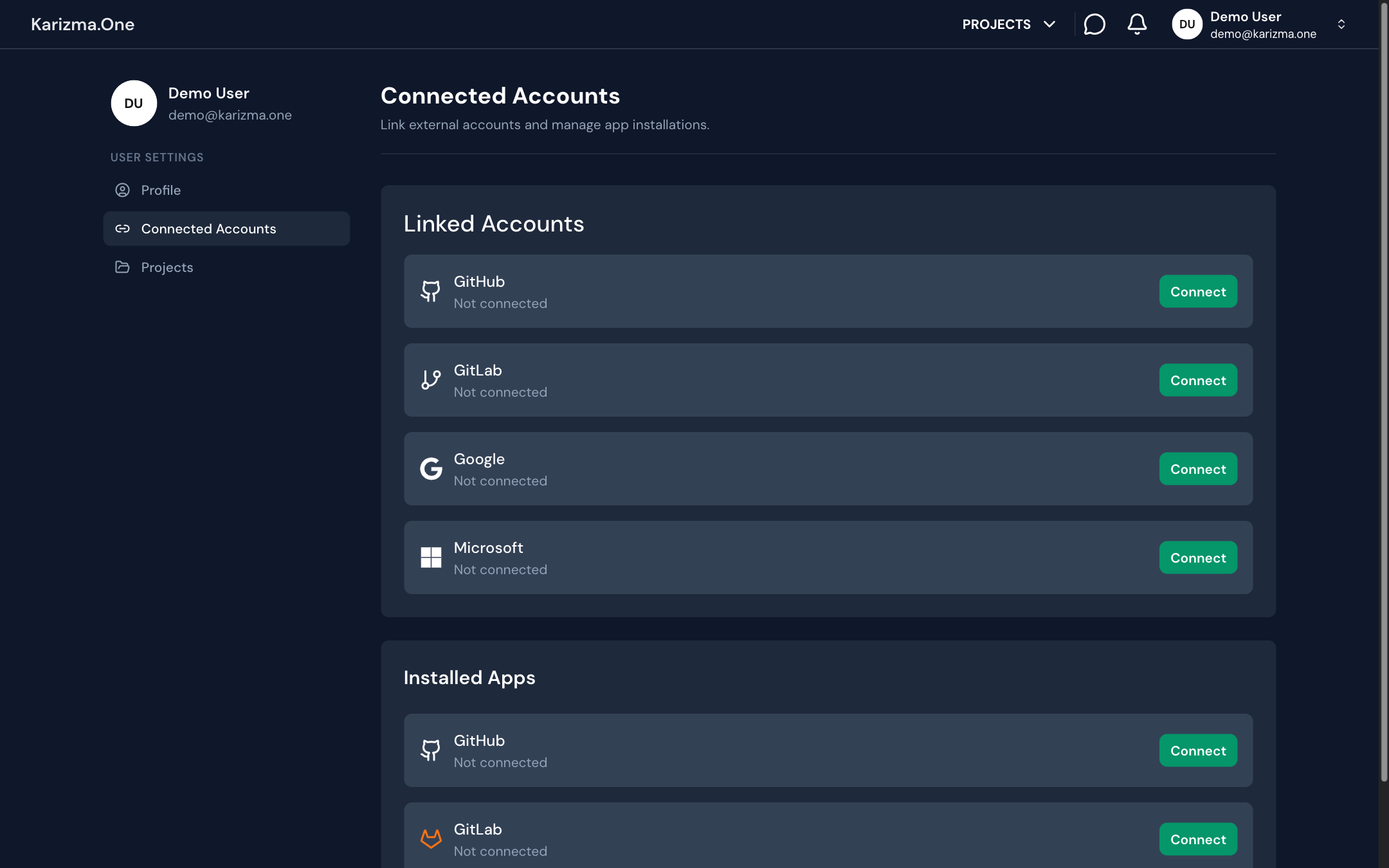
The Linked Accounts block lists the identities you can sign in with: GitHub, GitLab, Google and Microsoft. Each row shows Connected or Not connected.
To link an account:
- Click Connect on the provider's row.
- Authorize Karizma One in the provider window that opens.
- The row switches to Connected. You can now sign in to Karizma One with that provider.
If signing in fails with Your … account's email is not verified by the provider, first sign in with an account that is already linked, then link the new provider from this page.
There is no button to unlink an account once it is linked.
Connect your code hosts
The Installed Apps block manages the connections to your code repository hosts: GitHub, GitLab and BitBucket. Each row shows Connected or Not connected.
| Host | Connect button | Once connected |
|---|---|---|
| GitHub | Opens the install page of the Karizma One GitHub app; finish the installation on GitHub. | Configure |
| GitLab | Opens the GitLab authorization. | Configure |
| BitBucket | Opens the Bitbucket authorization. | Configure opens Bitbucket's app authorizations page. |
Karizma One has no password of its own and no two-factor authentication to set up: you sign in with Google, Microsoft, GitLab or GitHub, and account security (password, 2FA) is handled by that provider. See Sign in.
Find your projects
The Projects page ("Projects you have access to and useful resources") shows:
- Accessible Projects: your first three projects with their state. Click a project to open the HISTORY tab of its production branch, or View All Projects (N) to see the full list.
- Useful Links: Documentation and Service Status, the platform status page.
With no project, the page shows No Projects Found.