Backups
The BACKUP tab gathers a branch's backups: the ones created automatically, the ones you start by hand and the ones you upload. You can download them and restore them, including into another branch of the project (for example a production backup into a staging environment).
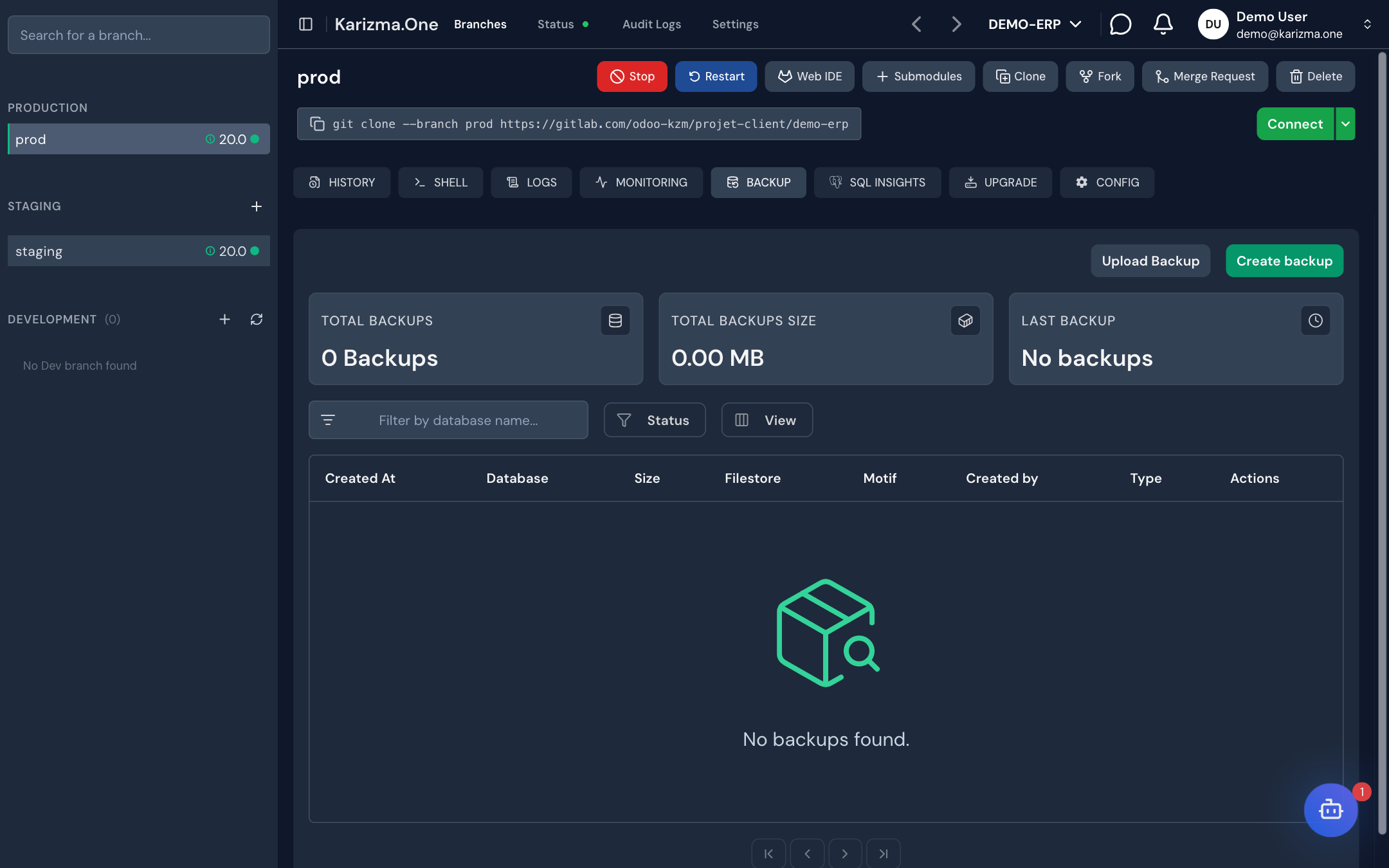
BACKUP tab of a production or staging branch.
- View and download backups: Super Admin, Admin and Developer.
- Create, upload and restore a backup: Super Admin and Admin.
Read the backup list
Three cards sum up the situation: Total Backups, Total Backups Size and Last Backup (date of the latest backup, or No backups).
| Column | Content |
|---|---|
| Created At | Creation date. |
| Database | Name of the backed-up database. |
| Size | Size in MB. A filestore backup in progress shows its progress. |
| Filestore | With Filestore, Without Filestore or Filestore Only, and Neutralized when the backup is neutralized. |
| Motif | Reason entered at creation. |
| Created by | Who created the backup. |
| Type | Auto (automatic backup), Manual or Migration (created by an upgrade). |
| Actions | Download, restore. |
To find a backup, filter by database name (Filter by database name...) or by content (Filters menu). Toggle columns lets you hide columns.
Create a manual backup
-
Click Create backup at the top right.
-
Under Filestore, pick the content:
Option Content Without Filestore (default) The database only. With Filestore The database and the filestore (attachments and files). The backup is larger. Filestore Only The filestore only, without the database. -
Tick Neutralize backup if needed (see below).
-
Optionally enter a reason in Reason for backup (Optional) (up to 100 characters).
-
Click Create backup. The message Backup will be available in a few moments. confirms it started; the backup appears in the list once ready.
The filestore holds your Odoo attachments and documents. It is often unnecessary for testing or troubleshooting: a Without Filestore backup is faster and smaller.
A Filestore Only backup in progress can be canceled from its row (Super Admin, Admin and Developer roles).
Neutralize a backup
The Neutralize backup option disables scheduled actions, mail servers and external integrations in the copy. The backup can then be restored for testing or shared without the risk of sending emails or triggering real processes.
The option is offered for Odoo 17 to 20, and not for a Filestore Only backup.
Upload a backup
- Click Upload Backup.
- In Backup File, pick a
.zip,.dumpor.sqlfile from your computer. - Optionally enter a reason in Motif (for example Pre-migration backup).
- Click Upload Backup. A panel tracks the upload progress.
On a branch running Odoo 20 or later, only .zip files are accepted: these versions can no longer restore raw .sql or .dump backups.
Download a backup
Click the download icon (cloud) on the row. Your browser downloads the file; the download is recorded in the audit log.
Restore a backup
A restore replaces the database of the target branch. It cannot be undone.
- Click the Restore icon on the row.
- In Restore Backup Into, pick the target branch. The list holds the project's production and staging branches you are allowed to restore into.
- Click Restore Backup.
- To confirm, type the requested text, in the form
<branch> - <stage>(for examplestaging - staging), then click Yes, restore it. Back takes you back to the branch choice.
The restore runs in the background: the row shows Restoring…, and you receive an email (Backup restoration completed successfully.) when it is done. It is recorded in the audit log.
When you restore a non-neutralized backup into a staging environment on the project's Odoo version, Karizma One neutralizes the database automatically after the restore. Your staging environment therefore sends no real emails and triggers no external processes.
A Filestore Only backup cannot be restored as a database (Filestore backups cannot be restored). An empty backup is refused too.
Automatic backups
Automatic production backups run on a schedule (frequency, time, rotation, storage) configured by Karizma; to change it, contact your Karizma representative. They appear in this tab with the Auto type.
Deleting a backup is not available from this tab. Contact your Karizma representative if needed.
See also
- Odoo upgrade, which can start from an existing backup.
- Branches and environments