MCP server on a staging branch
The MCP tab installs an MCP (Model Context Protocol) server in a staging branch's Odoo instance. AI tools can then read and act on your Odoo data, using API keys whose rights are limited to those of the Odoo user they are bound to. A staging environment lets you try these uses without touching production.
MCP tab of a staging branch only. Reserved to the project's Super Admins: for any other role, actions are refused with the message This service is reserved for the project's super admins.
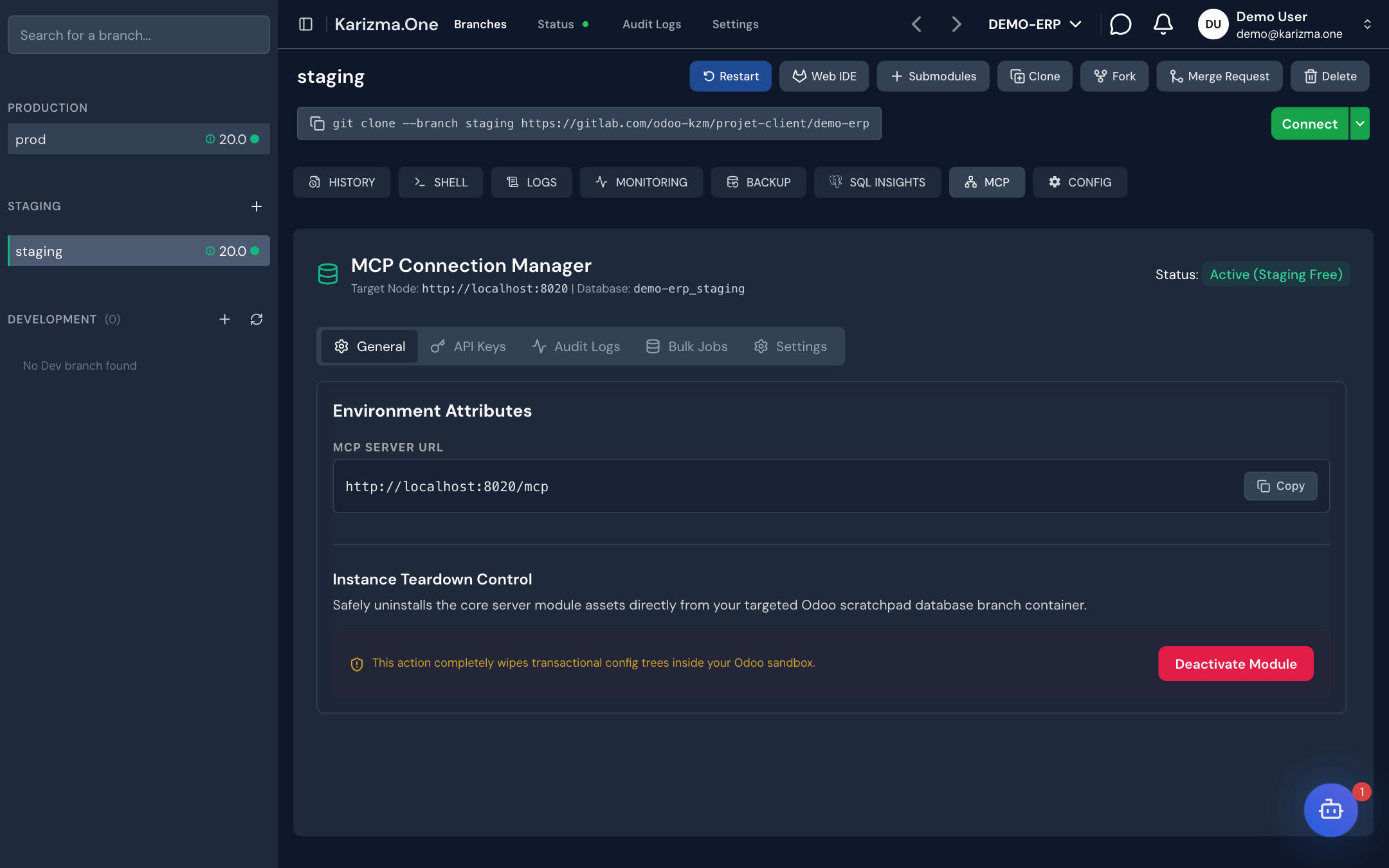
The MCP Connection Manager header shows the target instance (Target Node), the database and the server state: Active (Staging Free) or Inactive.
Turn on the MCP server
- Open the staging branch, then the MCP tab. As long as the server is not installed, the Deploy MCP Server Engine screen is shown.
- Click Activate for Free. The button shows Installing Module... while the
mcp_server_odoomodule is installed in the staging database. - The message MCP Server Engine deployed successfully confirms it. The server answers at
<staging address>/mcp.
Odoo 20 ships its own MCP server, which uses the same /mcp address. Activation uninstalls it to free that address, and the confirmation message says so. If an amber warning says both servers are still installed, run the activation again.
The sub-tabs
| Sub-tab | Content |
|---|---|
| General | The server address (MCP Server URL, with Copy) and module deactivation. |
| API Keys | The API keys that let AI tools connect. |
| Audit Logs | The log of calls received by the server, filterable by tool, status and Odoo model (for example res.partner). |
| Bulk Jobs | Tracking of asynchronous bulk jobs (exports, updates, deletions). |
| Settings | Server settings: on/off, requests per minute (Global Rate Limiter (RPM)), maximum payload size (Max Payload Buffer (KB)), log retention (Audit Processing Lifespan (Days), 0 to keep forever), logging of call payloads and masking of errors. |
Create an API key
- Under API Keys, click Create API Key.
- Fill in:
- Key Name: a name that identifies the use (for example the tool that will use it);
- Assign to User: the Odoo user whose rights the key inherits;
- Expiration Date (Optional): an expiry date;
- Key Status: active or not.
- Click Save Key.
A key's rights never exceed those of the chosen Odoo user. To show the token to paste into your AI tool, use See Token on the key's row.
Manage an API key
Open a key from the list to show its detail page (Manage: <key name>). It has three tabs:
| Tab | What you can do |
|---|---|
| API Key Configuration | Change the key's name, user, expiry and status, then Save Configurations. The Danger Zone lets you delete the key (Delete API Key): tools using it stop working immediately. |
| Key Access Configuration | Set the key's rights model by model: Read, Write, Create and Delete. Add Model Access adds a model; Sync Permissions and Reset Permissions resync or reset the rights. |
| Token Configuration | Manage the key's tokens. Generate New Version creates a new token, with a transition period during which the old one keeps working (0 to 30 days; 7 days recommended). A token can also be revoked immediately. |
Pick a transition period of a few days in Generate New Version: this gives you time to update your tools before the old token stops working.
Turn off the MCP server
Under General, in Instance Teardown Control, click Deactivate Module. The module and its configuration are removed from the staging database; the message MCP Server Engine uninstalled successfully confirms it.
See also
- MCP service
- Branches and environments to deploy a staging environment.