Working with a branch
When you open a project, Karizma One shows the page of the selected branch: the branch list on the left, the branch toolbar, then a tab bar. Each tab covers one aspect of the branch and its Odoo instance: deployment history, terminal, logs, metrics, backups, database, upgrade, MCP and configuration.
Click Branches in the top bar, then a branch in the sidebar. A tab's address has the form /project/<project>/branch/<branch>/<tab>, for example /project/demo-erp/branch/main/logs.
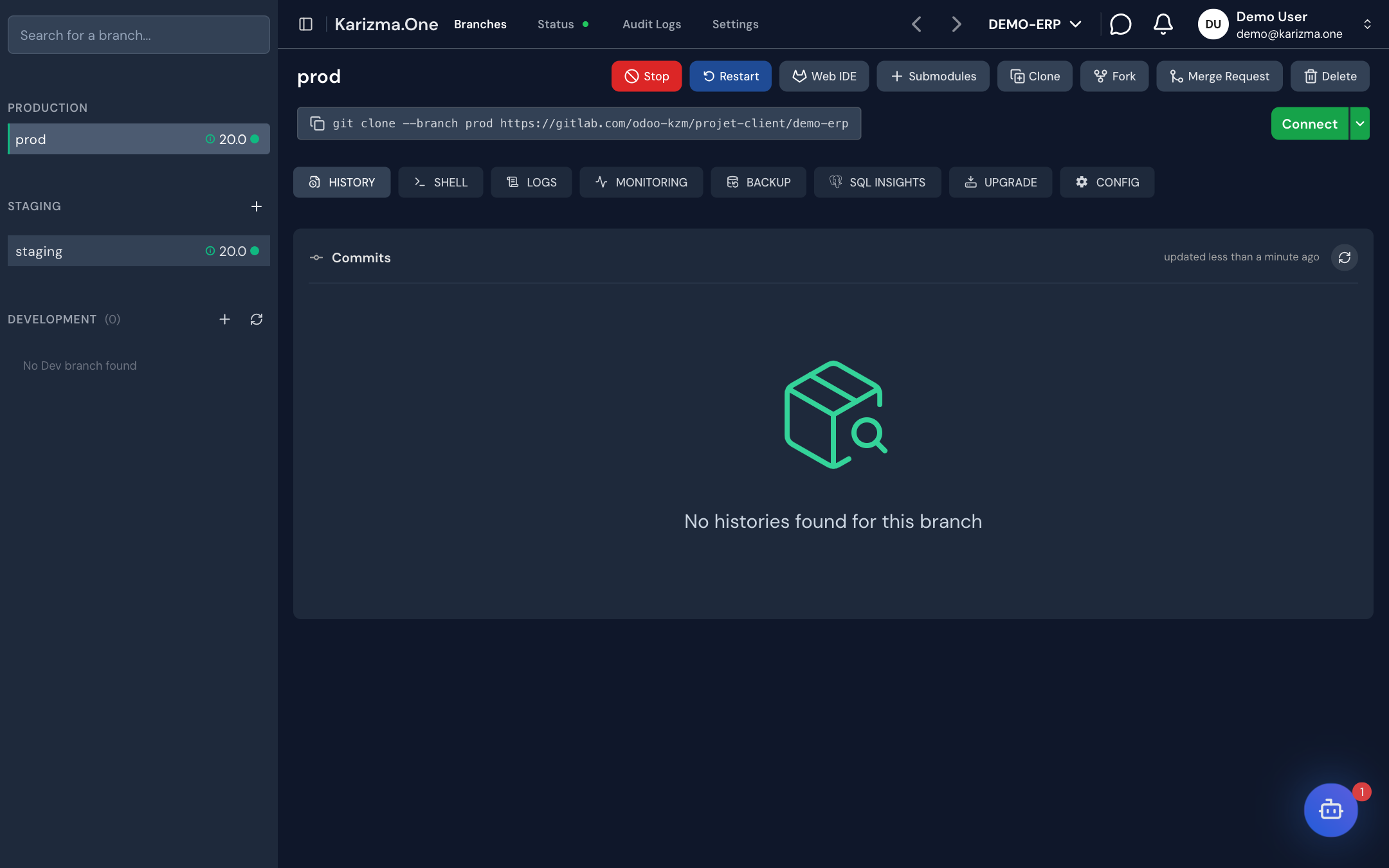
The tabs
Tabs are shown in uppercase, in this order:
| Tab | What it is for |
|---|---|
| HISTORY | The branch's commits, pipeline status (build and deployment), job logs and the changes in each commit. |
| SHELL | A terminal in the browser, connected to the Odoo instance's container. |
| LOGS | Live instance logs, or a search through past logs. |
| MONITORING | CPU, memory, network, sizes (database, container, backups) and HTTP traffic per URL. |
| BACKUP | Manual backups, upload, download and restore. |
| SQL INSIGHTS | Active queries, performance, index suggestions and a SQL editor. |
| UPGRADE | Upgrading to a newer Odoo version, all the way to production. |
| MCP | An MCP server on a staging branch, to connect AI tools to Odoo. |
| CONFIG | Module updates, auto-connect token, staging domain, Odoo build and Python dependencies. |
Tabs available at each stage
A branch's stage (see Branches and environments) decides which tabs are shown. dev and migration branches have no running instance: they only show HISTORY and CONFIG.
| Tab | prod | staging | dev | migration |
|---|---|---|---|---|
| HISTORY | Yes | Yes | Yes | Yes |
| SHELL | Yes | Yes | — | — |
| LOGS | Yes | Yes | — | — |
| MONITORING | Yes | Yes | — | — |
| BACKUP | Yes | Yes | — | — |
| SQL INSIGHTS | Yes | Yes | — | — |
| UPGRADE | Yes | When the branch targets a newer Odoo version than the project | — | — |
| MCP | — | Yes | — | — |
| CONFIG | Yes | Yes | Yes | Yes |
While a branch is being deployed, every tab except HISTORY shows Deployment in Progress: the environment is being prepared, which usually takes a few minutes.
Who can use each tab
Access depends on your role in the project. The table below shows the default roles; the full matrix is on the Roles and permissions page.
| Tab | Super Admin | Admin | Developer | Tester |
|---|---|---|---|---|
| HISTORY | Yes | Yes | Yes | Yes |
| SHELL | Yes | No | No | No |
| LOGS | Yes | Yes | Yes | Yes |
| MONITORING | Yes | Yes | Yes | Yes |
| BACKUP | Yes | Yes | View and download | No |
| SQL INSIGHTS | Yes | Yes | No | No |
| UPGRADE | Yes | Yes | No | No |
| MCP | Yes | No | No | No |
| CONFIG | Yes | Yes | On staging: module updates and Python dependencies | No |
When a tab is not available to you:
- UPGRADE, MCP and CONFIG are hidden;
- the other tabs stay visible but are greyed out and cannot be clicked;
- if you open the address of a tab you are not allowed, you are sent back to HISTORY.
When the project subscription has expired, a red banner says so and most actions are disabled. Contact your Karizma representative to renew it.
See also
- Branches and environments to create a branch, deploy it to staging or merge it into production.
- Roles and permissions for the full permission matrix.