SQL Insights
The SQL INSIGHTS tab gives you visibility into the branch's PostgreSQL database: running queries, the most expensive queries, index suggestions, and a SQL editor to test and then apply queries.
SQL INSIGHTS tab of a production or staging branch. Its content is available to the project's Super Admin and Admin roles.
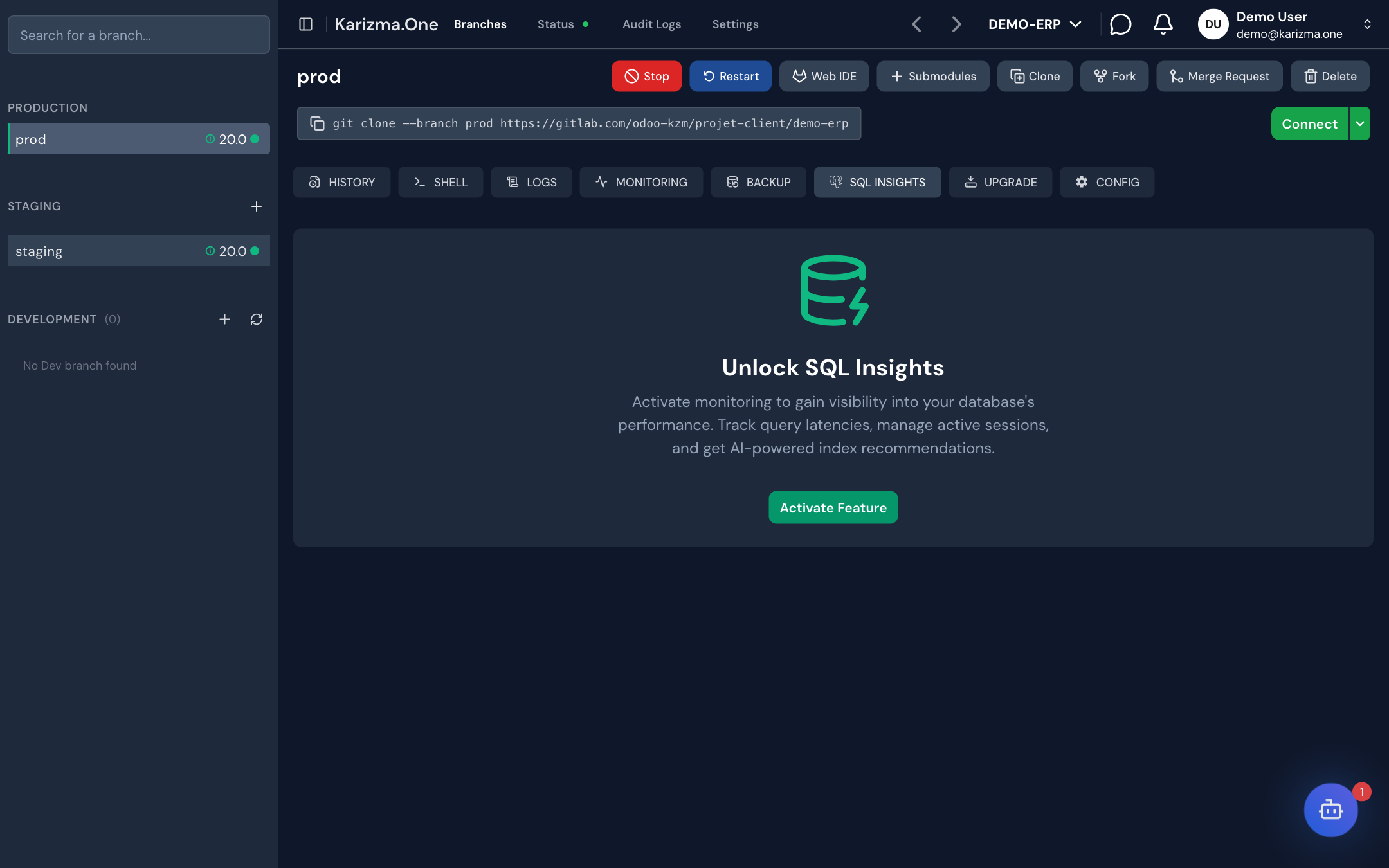
Activate SQL Insights
Activation is done once per branch.
- Open the SQL INSIGHTS tab. As long as the feature is not active, the Unlock SQL Insights screen is shown.
- Click Activate Feature. The button shows Activating... while it is being set up.
- The sub-tabs appear as soon as activation is complete.
The sub-tabs
| Sub-tab | Content | Available |
|---|---|---|
| Active Queries (default) | Queries currently running. | Always. |
| Query Insights | The most expensive queries. | Projects hosted on Google Cloud with a dedicated database server. |
| Index Suggestions | Indexes recommended by Google Cloud. | Same as Query Insights, and only for a project hosted in a European region. |
| Index History | Indexes created and their state. | Same as Index Suggestions. |
| SQL Editor | An editor to run SQL. | Super Admin and Admin. |
| SQL Query History | History of the queries run in the editor. | Super Admin and Admin. |
Monitor running queries
The Active Queries sub-tab lists the queries running on the database: PID, User, Database, Query Start, Query and Action.
- Find a query with Search by PID, user, or query....
- Pick an automatic refresh: 10 seconds, 15 seconds, 30 seconds, 1 minute, or Auto-refresh off.
- To stop a blocking query, click the action on its row, then confirm in Terminate Query?. This cannot be undone.
Find expensive queries
The Query Insights sub-tab ranks queries by load: Query, User, Times Called and Avg Latency (s). The Load by: selector changes the ranking criterion: Total Time(S), CPU Time(S), I/O Wait(S) or Lock Wait(S).
Manage indexes
- Index Suggestions shows the indexes recommended by Google Cloud's Index Advisor: the creation statement (Index Statement), the number of queries affected (Impacted Queries) and the estimated size (Est. Size (MB)).
- Index History lists the indexes created, with their table, statement, author, state and dates. An index can be deleted there, after confirmation (Delete Index Confirmation).
Run SQL
The SQL Editor sub-tab offers two ways to run a query (the buttons are icons; hover them to see their label):
| Button | Effect |
|---|---|
| Execute All / Execute selection | Dry run: the query runs, the result is shown, then the transaction is rolled back automatically. Nothing changes in the database. |
| Execute & Commit All / Execute & Commit selection | Real run: the transaction is committed and the changes are saved in the database. |
- Type your query in the editor. To run only part of the script, select it: the selection buttons appear.
- Test first with Execute All or Execute selection. The result is shown as a table in the output area.
- If the result is right, run the same query again with Execute & Commit All or Execute & Commit selection. After a successful commit, the executed text is removed from the editor.
To stop a query that takes too long, click Cancel.
Execute & Commit changes the database immediately. On the production branch, always dry-run the query first, and consider taking a backup before a significant change.
Review the query history
The SQL Query History sub-tab lists the queries run from the editor: Query Content (with View full script to read and copy the whole script), Status, Executed At and Executed By.
| Status | Meaning |
|---|---|
| committed | The query was run and committed. |
| uncommitted | The query was dry-run: nothing was saved. |
| rollback | The query was rolled back. |
Find a query with Search query history....
See also
- MONITORING for the instance's resource usage.
- BACKUP to back up the database before a change.