Odoo upgrade
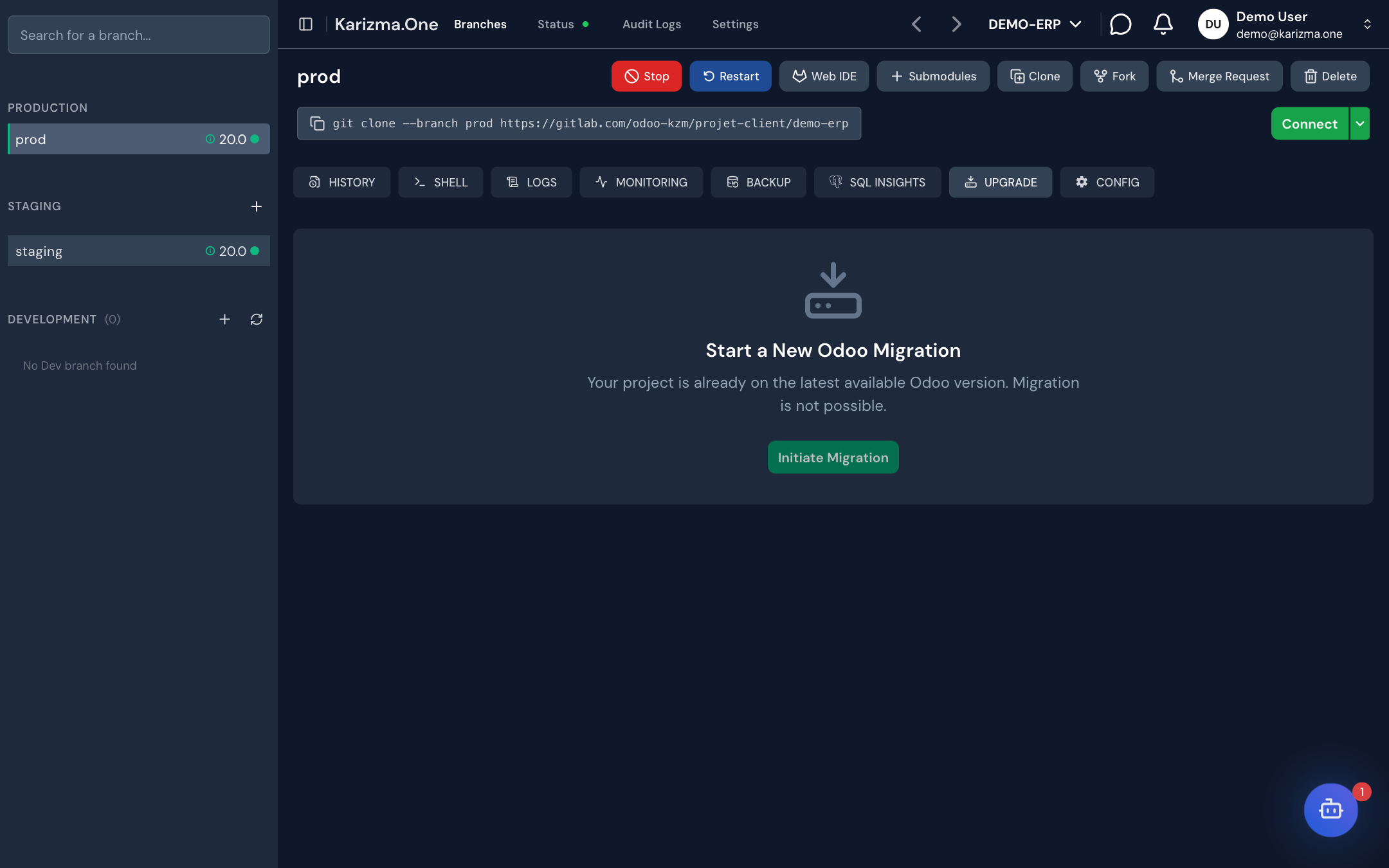
The UPGRADE tab guides you through moving your project to a newer Odoo version: you create a migration branch from production, test it on a staging environment with an upgraded database, then move it to production. Production is not changed until you start that last step.
Available to the project's Super Admin and Admin roles. The UPGRADE tab appears:
- on the production branch, to start a migration;
- on a staging branch that targets a newer Odoo version than the project, to prepare the database and move to production.
The steps of a migration
1. Create the migration branch
-
Open the production branch, then the UPGRADE tab (Start a New Odoo Migration).
-
Click Initiate Migration.
-
In Target Odoo Version, pick the target version. Only versions newer than the project's are offered.
-
Under Migration Purpose, pick the goal:
Option Use Branch name For Testing (Requires a branch name) A trial migration. It cannot be moved to production. The name entered in New Branch Name, followed by _TEST.For Production (Auto-generates branch name) The migration meant for production. Generated from the version, for example 18.0. -
Click Create Migration Branch.
The new branch appears in the MIGRATION section of the sidebar. If the project is already on the latest available version, the screen says so and no migration is possible.
2. Promote the branch to staging
Drag the branch from the MIGRATION section onto STAGING, then confirm with Promote. A staging environment is deployed on the new version; a cyan icon marks it in the list. Open this staging branch, then its UPGRADE tab.
See Branches and environments for details on staging deployments.
3. Get the upgraded database (step 1)
The Get Your Upgraded Database step offers up to three ways to get a database on the new version. The automatic engines only show when they are offered for your project. In every case, production is not changed: only the staging branch changes.
With Odoo's upgrade service
The Upgrade automatically with Odoo (Beta) block sends a copy of your production database to Odoo's upgrade service, then restores the result into this staging branch.
This engine needs an Odoo Enterprise or Online subscription code (Odoo upgrade subscription) saved on the project. To provide it, contact your Karizma representative.
- Click Start upgrade.
- Pick the source:
- Automatically create a backup from production (default): a fresh copy of the production database;
- Use an existing backup: a backup already taken on the project's production or a staging environment, picked in Select a backup.
- Follow the progress: production copy, sending, upgrade, result download, restore into the branch. A live log and the Read Odoo's upgrade report link are available.
- At the end, check the Integrity checks: module versions, general ledger balance, instance response, no missing modules. If a check fails, the database is still restored: review it before moving to production.
Cancel upgrade stops tracking the upgrade without touching production or the branch. Run another upgrade starts a new upgrade.
With Karizma's migration engine
When it is offered for your project, the KZM Migration block migrates a copy of your production database with Karizma's upgrade engine, then restores the result into this staging branch.
- Click Migrate and pick the source (a fresh production copy or an existing backup).
- For the final migration, freeze production first (users logged out, scheduled actions stopped), then tick Production is frozen. Anything written to production after the database was copied would be lost when the branch moves to production.
- Follow the steps: copy, sending to the engine, queue, migration, retrieval, restore, verification.
- Read the verdict: GO, GO with review or NO-GO, and open the full report with Open the full migration report.
Cancel migration lets you cancel a migration in progress. Only one upgrade can run at a time per project.
If your own modules need migration scripts, add them under Migration scripts for your own modules: click Upload scripts, then give each file its module (Module (technical name)) and version step (Version step). Each script must define a migrate(cr, version) function; its result is shown after the migration.
By uploading an upgraded database
The Or upload an upgraded database yourself block is always available: if you migrated the database yourself, click or drag a .sql, .dump or .zip file into Upload and Restore Database. The file is uploaded, then restored into this staging branch. Do not close the window while it runs.
4. Sync the filestore (step 2)
Under Filestore Synchronization, click Sync Filestore to copy the production filestore (attachments and documents) into the staging branch.
Sync the filestore right before moving to production, so you pick up the files added to production while you were testing.
5. Move to production (step 3)
This step only appears for a migration created with For Production (branch named after the version, for example 18.0). Trial migrations (_TEST) cannot be moved to production.
- Under Migration: Move to Production, click Move to Production.
- If the filestore has not been synced, the Filestore Not Synced window offers to do it (Sync Filestore) or to continue (Proceed Anyway).
- Enter the reason for the move in Motif (required).
- Click Migrate. The message Process started. This may take a few minutes... confirms it started.
The staging branch becomes the project's new production branch.
Moving to production replaces your production environment. Warn your users and schedule the operation outside business hours.
If you are not allowed to promote directly, the action creates a request for the project manager, who sees the reason you entered. To get it approved, contact your Karizma representative.
See also
- BACKUP for backups you can use as a source.
- Branches and environments