Merge requests
A merge request proposes to merge the code of one branch (the source) into another (the target), for example a validated staging into production. Karizma One merge requests are real GitLab merge requests, kept in sync with the platform: you create, review and merge them without leaving Karizma One.
Settings › Development › Merge Requests. Creating, viewing, analysing, closing and merging merge requests is limited to the project's Super Admin and Admin roles.
Merge request lifecycle
Create a merge request
There are three ways to create a merge request.
From the action bar
- On the project page, click Merge Request.
- In the Create a Merge Request dialog, type a title (Merge Request Title, at least 2 characters).
- Pick the Source Branch and the Target Branch. Only production, staging and development branches are listed.
- If the source is a development branch, you can tick Delete source branch when merge request is accepted.
- Click Create merge request. The message Merge request created successfully! confirms it.
By dragging a staging onto production
In the branch list, drag a branch from STAGING onto PRODUCTION, optionally type a title, then click Create merge request. See Ship a staging to production.
Directly in GitLab
A merge request created in GitLab appears in the list after you click Sync GitLab.
Track merge requests
The Merge Requests page (Synchronized GitLab Merge Requests) lists the project's merge requests.
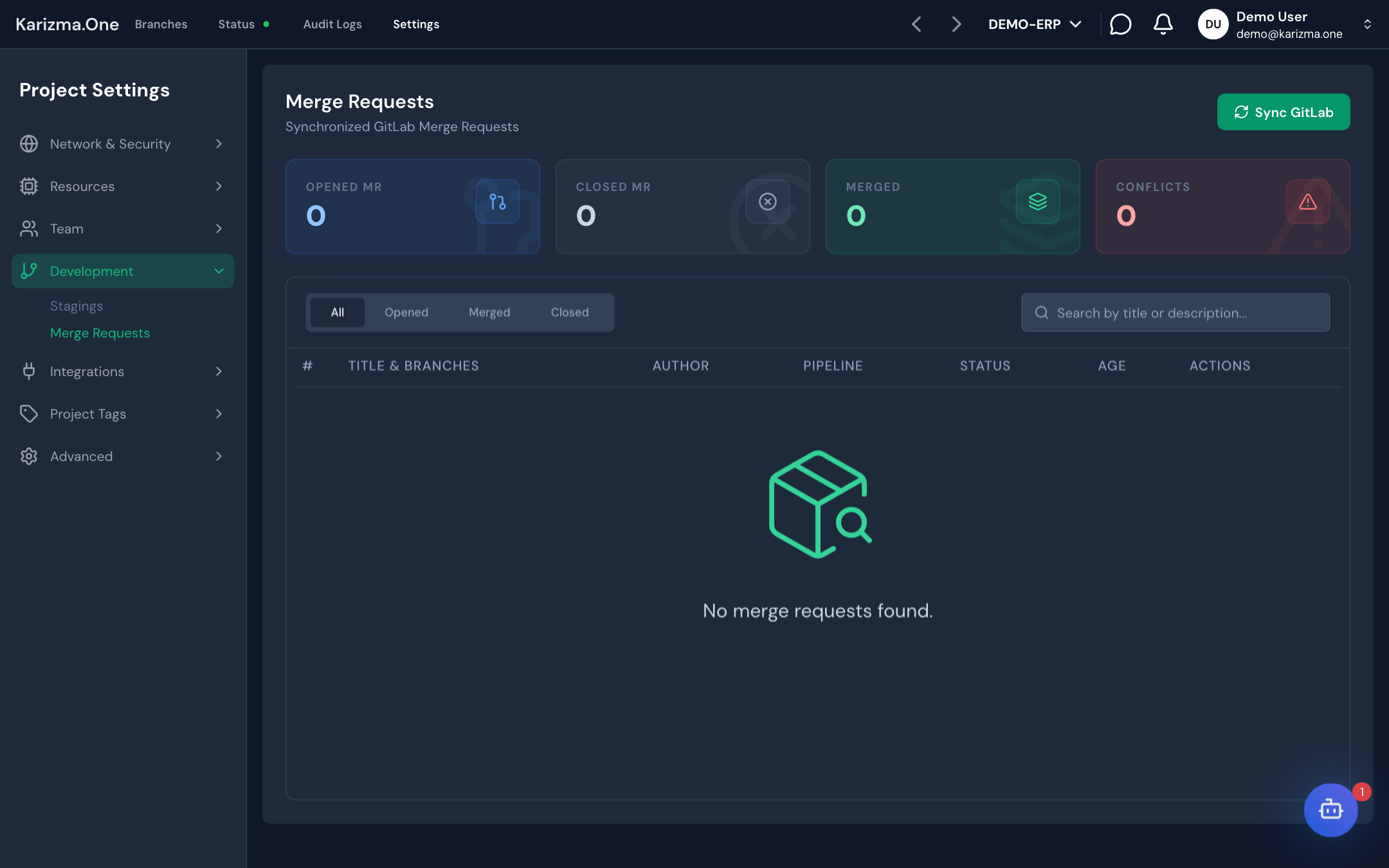
- Sync GitLab fetches the latest data from GitLab (GitLab data synchronized.).
- Four counters sum up the situation: Opened MR, Merged, Closed MR and Conflicts.
- The All, Opened, Merged and Closed tabs filter by state; the Search by title or description... box filters by text.
| Column | Content |
|---|---|
| # | Merge request number in GitLab. |
| Title & Branches | Title, source → target branches, GitLab labels and, when relevant, the reason the merge is blocked. |
| Author | Author of the merge request. |
| Pipeline | Status of the latest pipeline: Passed, Failed, Running, Pending, Canceled or Unknown. |
| Status | opened, merged or closed. |
| Age | How old the merge request is. |
| Actions | Opens the detail page or the merge request in GitLab. |
Why a merge request cannot be merged
A label shows what blocks the merge. The most common reasons:
| Label | What to do |
|---|---|
| Conflicts with the target branch | Resolve the conflicts with Resolve in Web IDE. |
| Pipeline must pass first / Pipeline is still running | Wait for the pipeline to finish or fix the error. |
| Unresolved discussions | Resolve the open discussions in GitLab. |
| Still a draft | Remove the draft status in GitLab. |
| Not approved yet / Changes were requested | Get the approval required by your GitLab repository's rules. |
| Needs a rebase | Bring the source branch up to date with the target. |
| Blocked by another merge request | Merge the merge request it depends on first. |
| GitLab is still checking mergeability | Wait a moment, then click Sync GitLab. |
Review a merge request
Click a merge request to open its detail page. The header shows its number, its title, the source and target branches, the number of files changed and the lines added or removed.
| Tab | Content |
|---|---|
| Overview | The AI Overview summary and the merge request's activity (Activity): GitLab comments and events. View full activity shows the whole history. |
| Changes | The differences, file by file, side by side or inline. |
| Commits (n) | The merge request's commits; View commit details shows a commit's details. |
Have the AI analyse the changes
In the Overview tab, the AI Overview section (Automated Code Review) produces an automated review of the changes.
- Click Analyze AI.
- The analysis takes a few minutes; the result appears automatically.
- To run it again after new commits, click Re-analyze. A waiting time applies between two analyses (Re-trigger available in about N min.).
Act on a merge request
On an open merge request, the action bar offers:
| Button | What it does |
|---|---|
| Close MR | Closes the merge request without merging it. |
| Request Changes | Opens a comment box, pre-filled with a mention of the author. Post Comment posts the comment to GitLab (Correction request note posted to GitLab.). |
| Resolve in Web IDE | Only shown when there are conflicts. Opens the source branch in the Web IDE with the conflicting files. See Resolve merge request conflicts. |
| Validate & Merge | Merges the merge request into the target branch (MR !N merged successfully.). Disabled while there are conflicts or a block; the tooltip Cannot merge: … gives the reason. |
A closed merge request shows This Merge Request is closed. and the Reopen MR button to reopen it. A merged merge request shows This Merge Request has already been merged.
Karizma One has no approval button. If your GitLab repository enforces approval rules, they are managed in GitLab and show up here as the Not approved yet block.
After the merge
The merge creates a commit on the target branch, which runs its pipeline. Merging into the production branch deploys it to production: see Deployments and pipelines. Follow the deployment in the target branch's HISTORY tab.