Your projects
The Your Projects page lists every Odoo project you have access to. It is where you land after signing in: you can search for a project, check its state at a glance and open it. It is also where you create a new project with your activation code.
https://app.karizma.one/projects, or Projects in your avatar menu. Open to any signed-in user; you only see the projects you are a collaborator on.
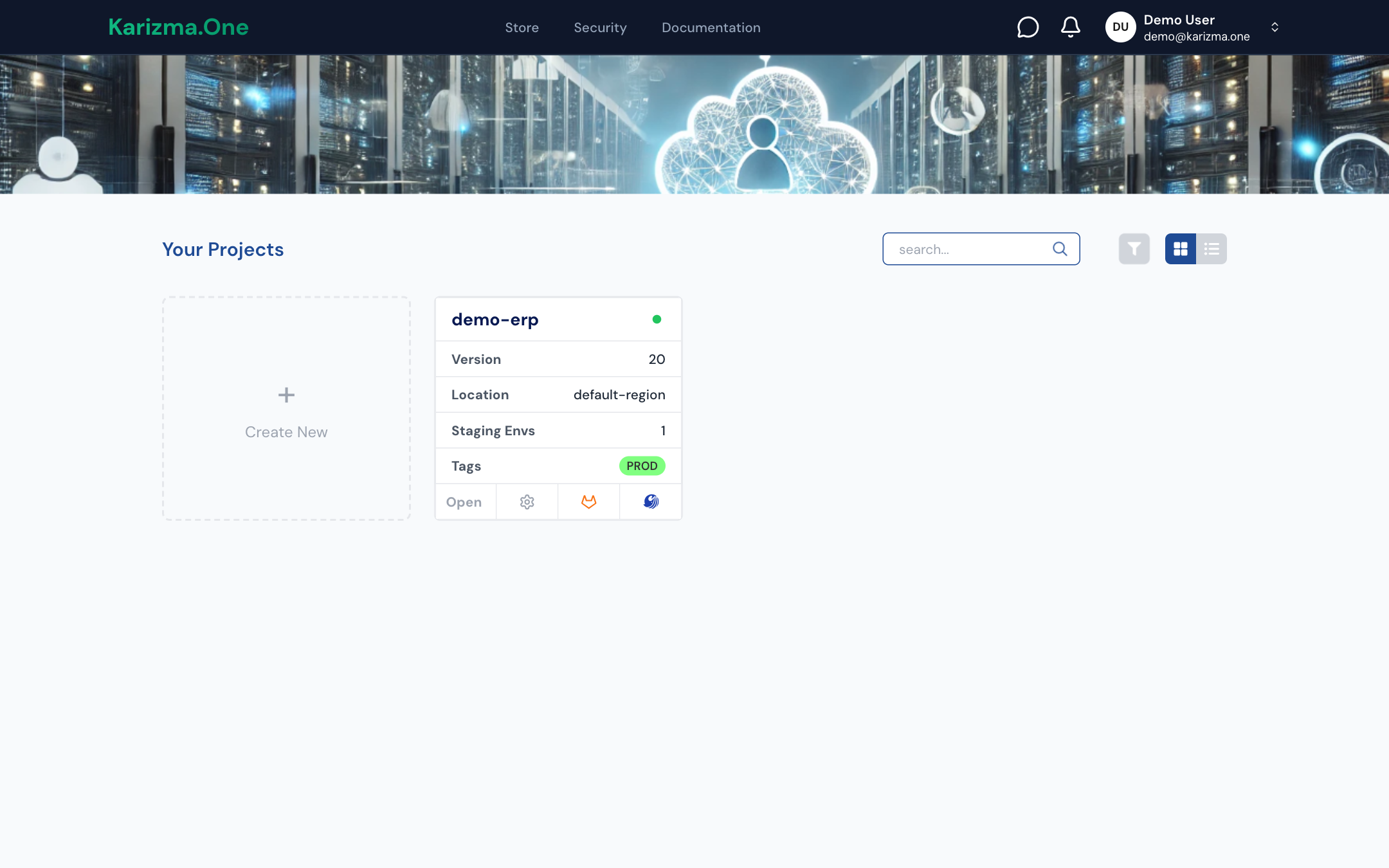
Read a project card
Each project is shown as a card. The dot next to the name shows the state of the Odoo service: green when it is running, red when it is down.
| Row | Meaning |
|---|---|
| Version | The project's Odoo version, for example 17.0. |
| Location | The cloud provider region where the project is hosted. |
| Staging Envs | Number of deployed staging environments. |
| Tags | Up to three tags, then +N if there are more. |
| Expired | Red pill shown instead of the tags when the project's subscription has expired. |
The buttons at the bottom of the card:
| Button | Action |
|---|---|
| Open › | Opens the project's production branch on the HISTORY tab. |
| Gear icon | Opens the project settings, including services. Available to the Super Admin and Admin roles. |
| GitLab icon | Opens the project's GitLab repository in a new tab. |
| SonarQube icon | Opens the project's code quality dashboard in SonarQube. |
When the subscription has expired, the project still opens, but most actions are disabled. Contact your Karizma representative to renew it.
Search and filter
-
Search: type part of the name in the search... box; the list updates as you type.
-
Filter: click the funnel icon (it turns blue when a filter is active), then combine:
Filter Values Odoo Version One or more Odoo versions. Tags One or more tags. Cloud Provider Region One or more regions, grouped by cloud provider. Status UP (service running) or DOWN (service down). Clear filters removes every filter.
-
Layout: on desktop, switch between the grid view and the list view.
Filters and the page number are stored in the page address: copy it to come back to, or share, the same selection.
Switch between projects
Once inside a project, the top bar shows:
- the project's Branches, Status, Audit Logs and Settings links (the last two depending on your role);
- the Previous Project and Next Project arrows, which open the previous or next project on the same page (same tab of the production branch, or same settings page). They are inactive if you only have access to one project;
- the projects dropdown, labelled with the open project's name. It holds a Search projects... box, the list of projects (columns Version, Name and GitLab Repository) and a Projects Overview button that takes you back to Your Projects. Click a row to open that project on its production branch.
Create a project
You create a project with an activation code of the form KO-XXXXXXXXX. You receive it by email once your order is paid.
Orders are prepared by the Karizma teams. To order a new project or get your activation code, contact your Karizma representative.
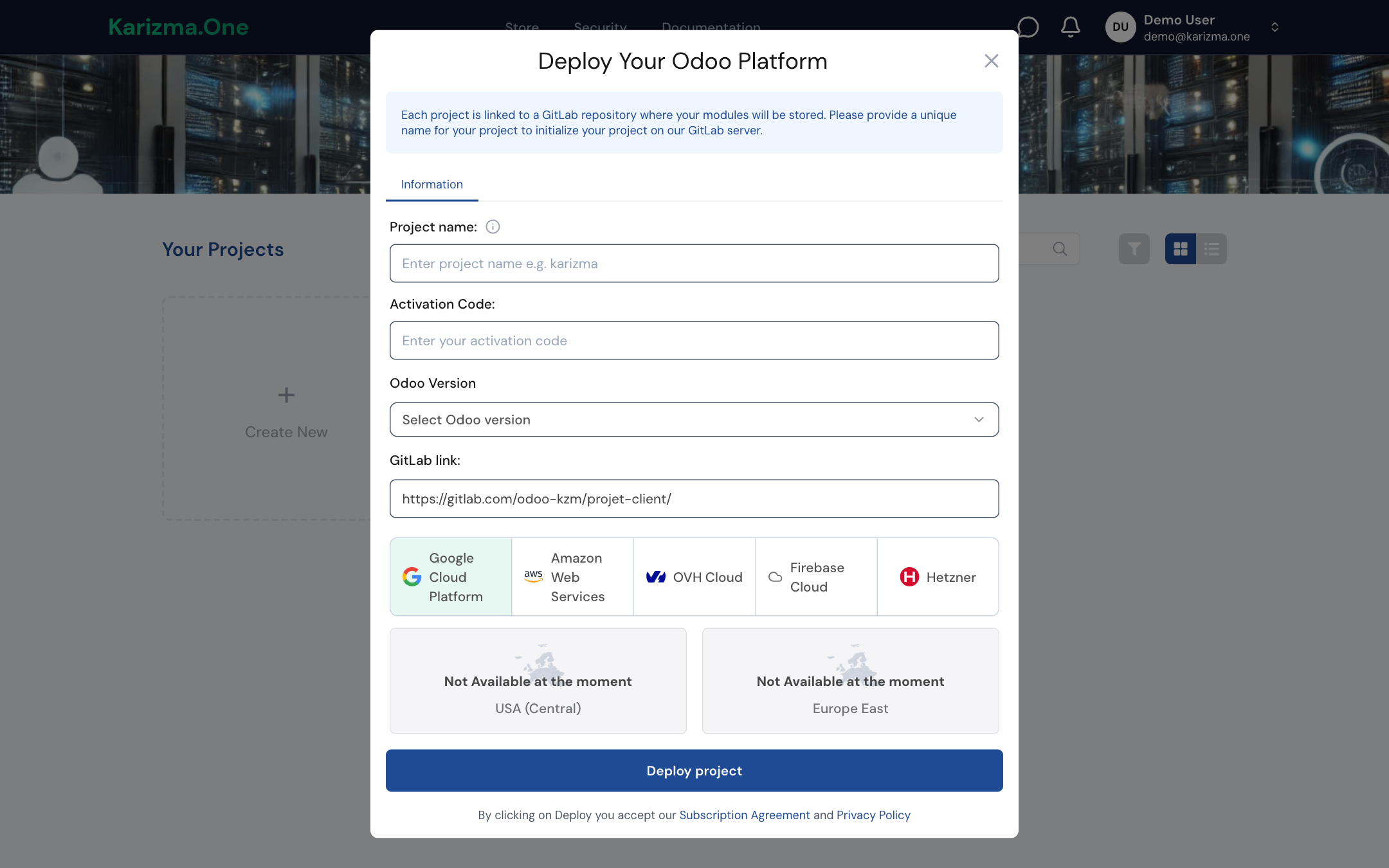
- On the Your Projects page, click the + Create New tile (always the first one in the list).
- The Deploy Your Odoo Platform window opens. Fill in Project name: at least 2 characters, lowercase letters and digits only, no spaces or special characters. The name must be unique: it is also used for the GitLab repository, shown read-only in GitLab link (
https://gitlab.com/odoo-kzm/projet-client/<name>). - Type your code in Activation Code. A moment after you stop typing, the code is checked: the message Activation code is valid. appears, and the cloud provider and region of your order are pre-selected and locked.
- Pick the Odoo version in Odoo Version.
- Click Deploy project.
You are taken to the new project's page. Its production branch, named after the Odoo version (for example 17.0), is being deployed: until it is ready, every tab except HISTORY shows Deployment in Progress.
Common error messages
| Message | What to do |
|---|---|
| Project name must be at least 2 characters long. / Project name must be in lowercase, with no spaces or special characters. | Fix the project name. |
| Activation code is required. | Type the code you received by email. |
| Failed to fetch subscription. | Check the code; if it is correct, contact your Karizma representative. |
| The region associated to your order is not available for deployment. Please contact support. | Contact your Karizma representative. |