Cloud Armor
Cloud Armor is a web application firewall (WAF) placed on your project's load balancer. It inspects requests that reach your site through its domain name and rejects the ones your rules match: bots, bursts of login attempts, countries you do not allow, known attacks.
Settings › Network & Security › Cloud Armor. Available to the project's Super Admin and Admin roles. Cloud Armor needs the Load Balancer service or the CDN service (which includes a load balancer) to be active: see CDN and Load Balancer.
Activate Cloud Armor
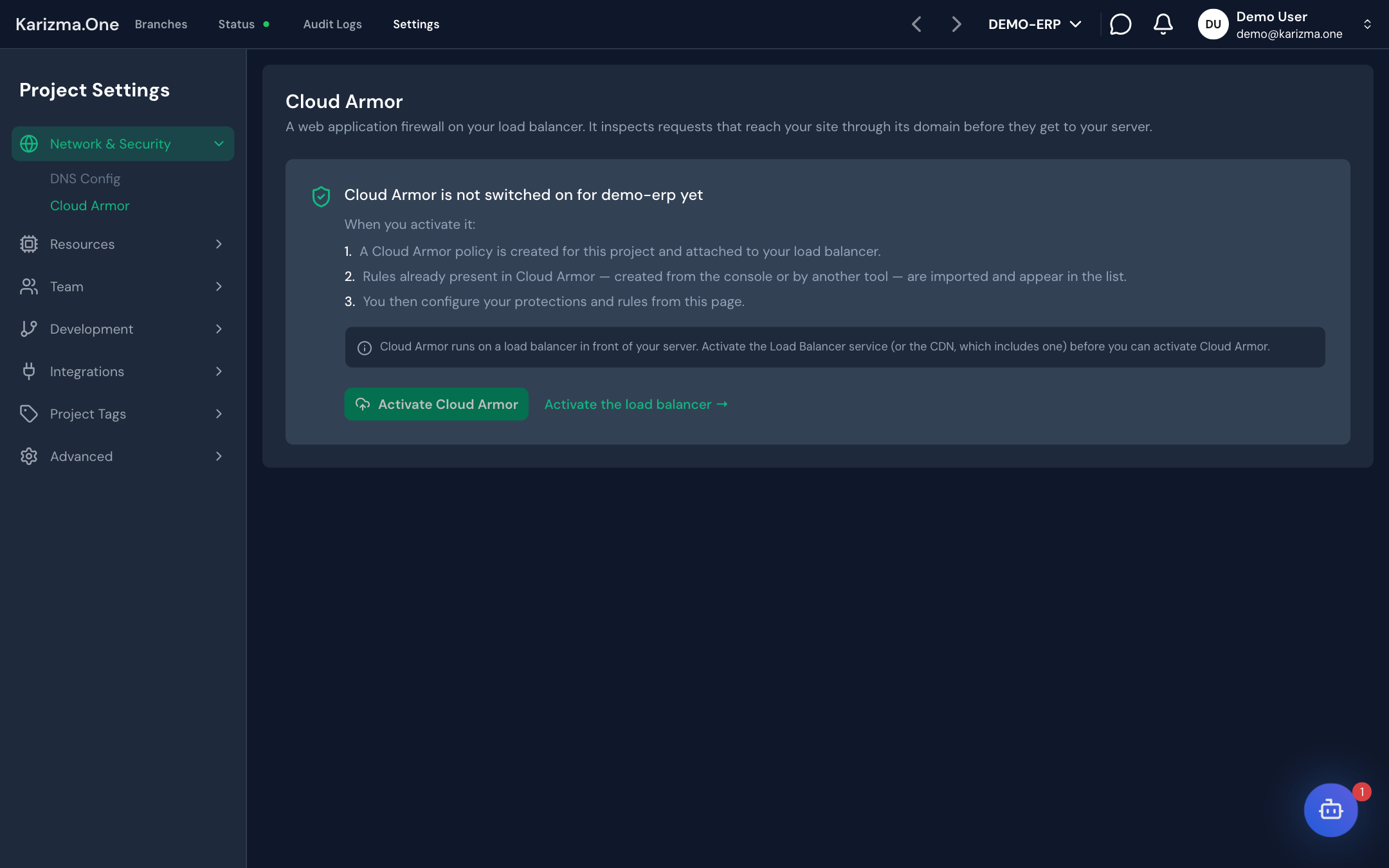
Until Cloud Armor is activated, the page explains what will happen and shows the Activate Cloud Armor button.
- Check that the Load Balancer or CDN service is active. Otherwise the button is greyed out and the Activate the load balancer → link takes you to the service.
- Click Activate Cloud Armor.
- Karizma One creates a Cloud Armor policy for the project and attaches it to your load balancer. Rules that already existed in Cloud Armor are imported and appear in the list.
- Then set up your protections and rules from this page.
A policy with no rules lets all traffic through. Filtering starts when you switch on a protection or a rule.
The button is also greyed out while a load balancer is being set up or removed: wait for that to finish.
Switch on the ready-made Odoo protections
In the Rules tab, the Ready-made Odoo protections card offers protections designed for Odoo. Switch a protection on to deploy it immediately; the message Protection switched on (priority N). confirms it.
| Priority | Protection | Effect | Recommended | Input needed |
|---|---|---|---|---|
| 400 | Database manager | Blocks /web/database* (404 response). | Yes | — |
| 500 | Login attempts | After 10 submissions per minute to /web/login from one IP address, bans that address for 10 minutes (429 response). | Yes | — |
| 600 | Scanning robots | Blocks paths that bots probe: wp-admin, xmlrpc.php, .env, .git/, phpmyadmin (404 response). | Yes | — |
| 700 | Back-office access | Restricts /odoo and /web/login to your IP ranges (403 response); the public website stays open. | No | Your address ranges |
| 800 | Country restriction | Only allows the countries you choose (403 response). | No | Allowed countries (8 at most) |
| 900 | API and integration rate limit | Limits /jsonrpc and /web/dataset/call_kw to 600 requests per minute per IP address (429 response). | No | — |
Protections that need input open a dialog: enter your address ranges separated by commas (for example 196.200.130.0/24, 41.140.12.5) or pick the countries, then click Switch on the protection.
With Back-office access or Country restriction, make sure your own address or country is in the list. Otherwise you lose access to your instance.
Set up the web application firewall (OWASP)
The Web application firewall card blocks the main attack classes: SQL injection, cross-site scripting, remote code execution, file inclusion, protocol abuse and scanners.
- Switch the card on.
- In Attack classes, keep every class selected (the default). Remove one only if it causes false positives.
- In Sensitivity, pick the level: 1 — Recommended, 2 — Stricter, 3 — Aggressive or 4 — Maximum.
- Click Apply in the You have unapplied changes banner.
Above level 1, the SQL injection and remote code execution rules start blocking Odoo's normal JSON-RPC requests. Only raise the level if the Events tab shows attacks getting through.
Get rules from the AI assistant
The Not sure what to write? card writes rules from a plain-language description.
- Describe what you want to block in Describe what you want to block, or click an example (Block China and Russia, Block the address 203.0.113.5…).
- Click Propose rules (or Ctrl + Enter).
- The proposed rules are added to the list switched off. The result shows their priorities and any rejected proposals.
- Read each rule in the list, then switch on the ones you want to apply.
Add a custom rule
The Rules card lists every rule of the policy, evaluated from the lowest priority to the highest. A label shows where each one comes from: protection, Odoo protection, assistant, manual or imported.
-
Click Add.
-
Fill in the Add a rule dialog:
Field Content Priority A positive number. The 400 to 4999 range is reserved for protections. Action Deny (block) or Allow. Description Free label, for example "repeat scanner". Condition Simple — IP addresses only: a list of addresses; or Advanced — expression: a CEL expression. Response code For Deny: 403, 404, 429 or 502. -
Confirm: the rule is added and deployed (Rule N added and deployed.).
Each rule has a switch. Switching on asks for confirmation (Switch on) because a rule that is too broad can lock you out of your own instance; switching off is immediate. To delete a rule, click the trash icon, then Delete rule: it is removed from Cloud Armor right away.

Apply pending changes
Odoo protections and rules take effect as soon as you switch them on. Web application firewall settings, however, are first saved in Karizma One: the You have unapplied changes banner says so. Click Apply to put them live.
Other banners can appear at the top of the page:
| Banner | Meaning |
|---|---|
| The last apply did not finish | The last apply failed; the error message is shown. |
| Some protections are switched on but unfinished | A protection is switched on without all its settings. It blocks nothing, and Apply will not go through until it is completed. |
| Sync: not everything could be imported | The Sync button could not import some rules created outside Karizma One. |
The Sync button at the top of the page re-imports the rules present in Cloud Armor.
Track blocked requests
The Events tab shows the requests your rules acted on, newest first.
-
Pick the window: Last hour, Last 24 hours or Last 7 days.
-
Read the counters:
Counter Meaning Blocked Requests rejected by an active rule. Would have been blocked Requests matching a rule that is only observing. Recorded events Number of events in the window. -
Check Most active rules, Top source addresses and the Events list (address, URL, date, rule priority).

Switch Cloud Armor off
- At the bottom of the Rules tab, in the Switch Cloud Armor off zone, click Switch off.
- Confirm in the Switch off Cloud Armor dialog.
Cloud Armor stops filtering requests immediately. Your rules and settings are kept: the page then shows Resume Cloud Armor to attach them to the load balancer again.
If the Load Balancer or CDN service is turned off, Cloud Armor is paused. Your rules are kept and come back on their own when a load balancer or CDN is active again.
Coverage limits
Rules only apply to requests that come through your domain name. Your server also answers on its own IP address, and requests sent straight to that address bypass Cloud Armor (and do not show in Events). While this direct access is open, the page shows the Couverture partielle (partial coverage) banner. To have it closed, contact your Karizma representative.