MCP
The MCP service (Model Context Protocol) lets AI tools work with your production Odoo database. Access goes through API keys, each linked to an Odoo user whose access rights it inherits. You can also authorize phone numbers to talk to the Karizma WhatsApp chatbot.
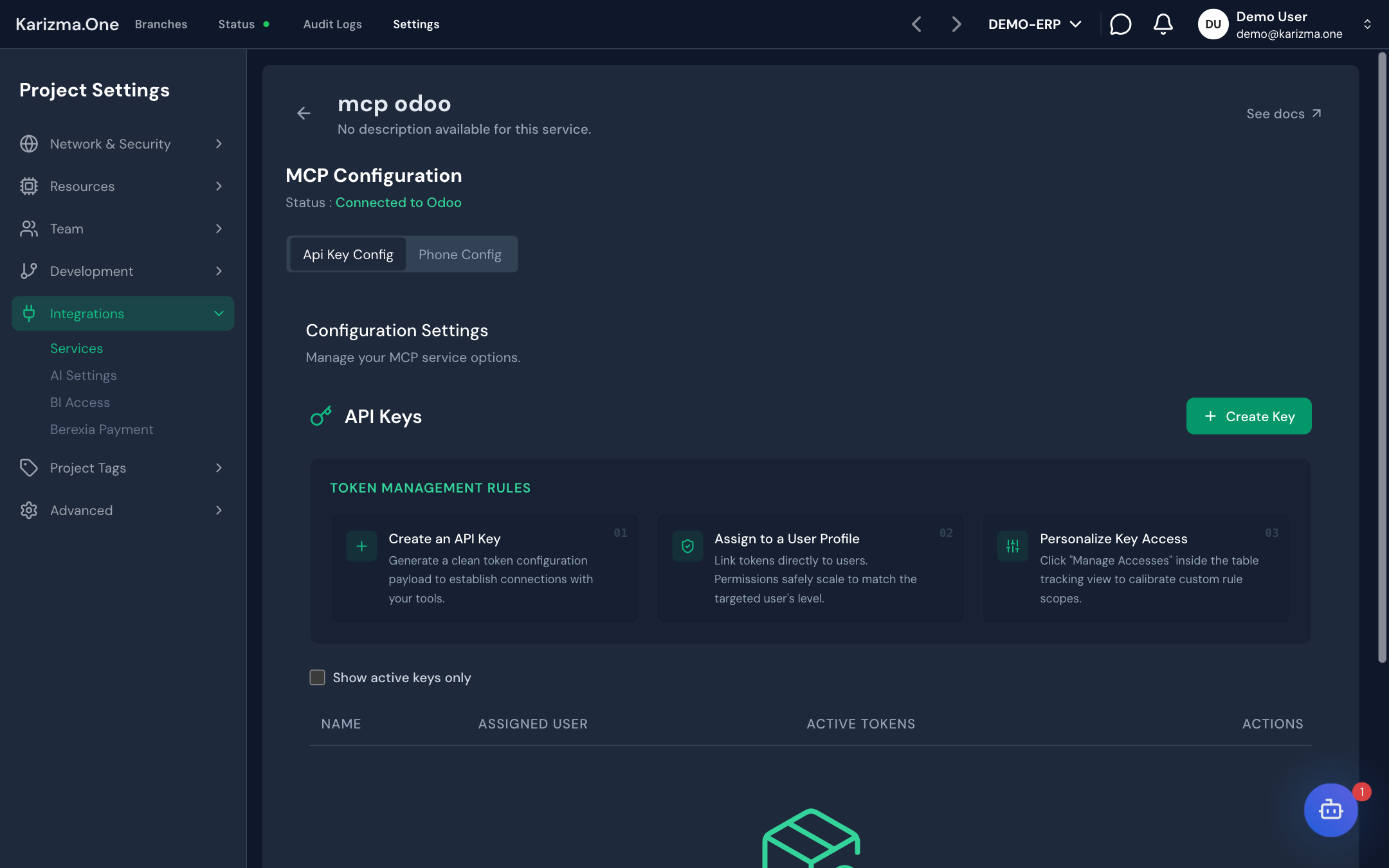
Settings › Integrations › Services, the MCP card. Reserved to the project's Super Admin: for other roles, the card is hidden and the page is refused (This service is reserved for the project's super admins.).
Activate the service
Activate MCP like any other service (see Services). Activation installs the MCP module on the production Odoo instance, which must therefore be deployed. The MCP Configuration panel then shows Status : Connected to Odoo.
Create an API key
The Api Key Config tab (open by default) lists keys in the API Keys table: name, linked user (Assigned User), number of active tokens (Active Tokens) and Active / Inactive state. Tick Show active keys only to hide inactive keys.
-
Click + Create Key.
-
In the Create API Key window, fill in:
Field Content Key Name A meaningful name, for example Production Mobile App. Assign to User The Odoo user whose access rights the key inherits. The key can never do more than this user. Expiration Date (Optional) The date the key stops working. Key Status Active or inactive. -
Confirm. The access token is shown only once: copy it right away and keep it somewhere safe.
You cannot see the token again after closing the window. If it is lost, create a new key.
Manage a key and its access rights
In the table, the Manage Access Permissions action opens the key page (Manage: <name>), which has two tabs.
API Key Configuration: change the key's name, linked user, expiry date and state. The Danger Zone lets you delete the key with Delete API Key; applications using it stop working immediately.
Key Access Configuration: fine-tune the key's rights, Odoo model by Odoo model.
- Search for a model by its name or technical name.
- Switch the Read, Write, Create and Delete rights on or off for each model.
- To add models, use Add Model Access.
The Sync Permissions and Reset Permissions buttons resync or reset the key's rights with Odoo.

Authorize phone numbers
The Phone Config tab links the Karizma WhatsApp chatbot to your API keys.
- Official WhatsApp Chatbot shows the chatbot number (CONNECTED). The Send Hello link opens a WhatsApp chat with it.
- Authorized Contacts lists the authorized numbers (3 at most), with the API key linked to each one.
To add a number:
- Click Add Contact.
- Pick the country code, type the number, then choose the API key to link in Assign API Key.
- Click Next: a 6-digit verification code is sent to the number.
- Enter the code, click Verify Code, then save. If the code does not arrive, use Resend OTP Code once the countdown ends.
Beyond 3 numbers, adding is refused (Maximum limit of 3 routing numbers reached.).
MCP on a staging branch
You can also activate MCP on a staging branch, from the branch's MCP tab, to test your integrations without touching production. See Branch MCP tab.
See also
- Branch MCP tab
- WhatsApp to connect your own WhatsApp Business number to Odoo.
- Services overview