Services
Services add features to your project: delivery through a CDN, WhatsApp messaging, e-mail sending, e-invoicing, extra resources and more. They are all managed from one page: you see which ones are active, which ones are waiting to be activated, and you can buy new ones.
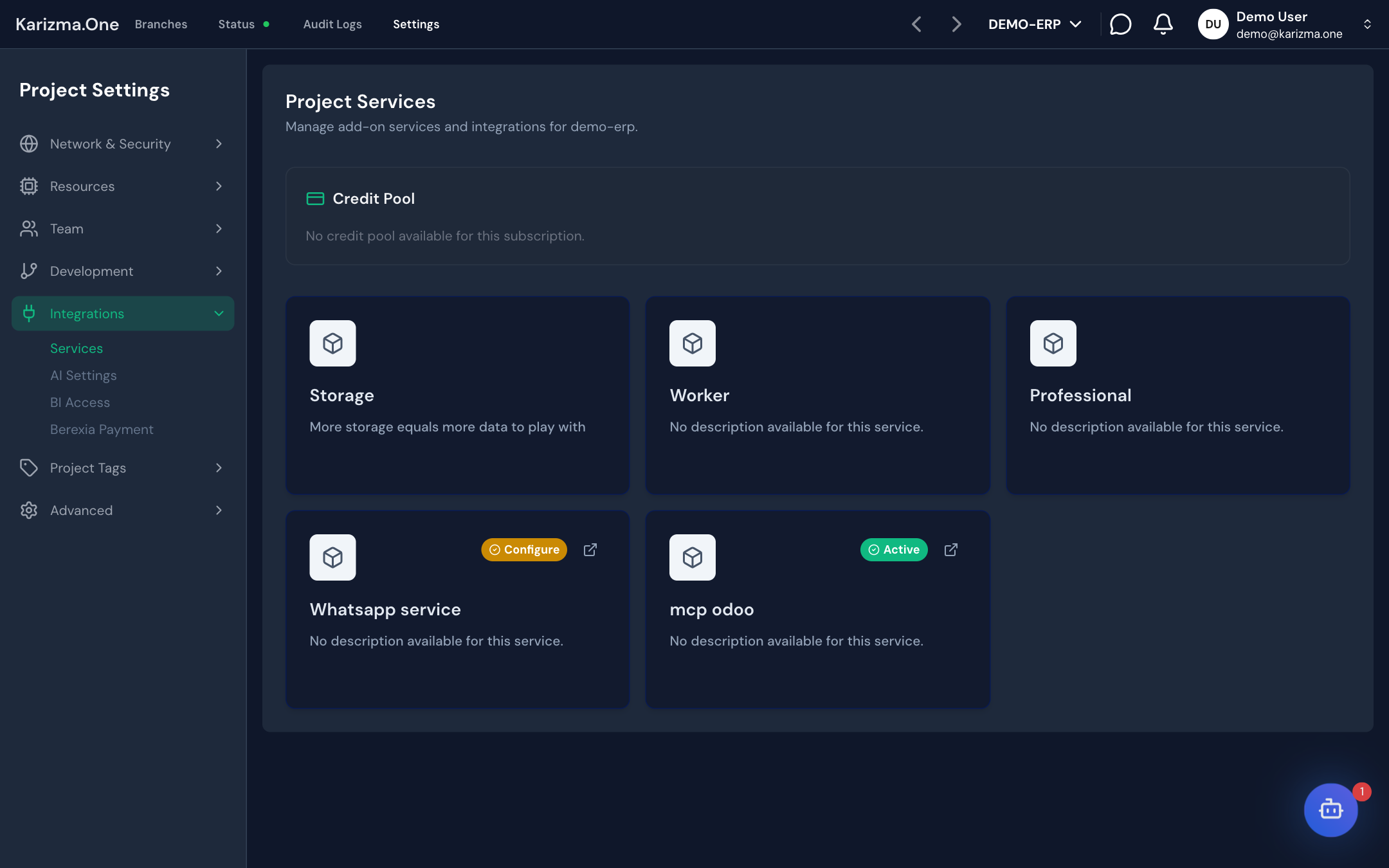
Settings › Integrations › Services, the Project Services page. Available to the project's Super Admin and Admin roles. The MCP service is only visible to the Super Admin.
Read the service list
Each card shows the service name, its description and, on hover, the Manage Service link. Click a card to open the service page.
| Badge | Meaning |
|---|---|
| Active (green) | The service is running on your project. |
| Configure (amber) | The service is bought or available but not activated yet. Open it to finish the activation. |
| (no badge) | The service is not bought yet. Open it to start the purchase. |
Extra resources (CPU, storage, stagings) only show the Active badge.
The services on offer, their names, descriptions and prices come from the Karizma catalog and depend on your project's plan, so the list can differ from one project to another. The prices shown at checkout are the ones that apply.
Track the project's credits
The Credit Pool card at the top of the page shows your subscription's credits:
| Item | Content |
|---|---|
| Additional Credits | Credits bought on top of your plan (Purchased top-ups). |
| Available Balance | The balance you can use. |
| Usage This Period | Credits used during the period, per service. |
Some services used from Odoo take credits from this balance on each operation. When the available balance is too low, the operation is refused. The SMTP service is the exception: it has its own daily quota (see SMTP).
Click Credit History to show the list of movements. You can filter by Type (Plan Grant, Purchase, Usage, Refund, Adjustment) and by period (From, To). Each line shows the date, type, service and amount.
If your subscription has no credit pool, the card shows No credit pool available for this subscription. To add credits, contact your Karizma representative.
Activate a service you already own
When a service is bought (Configure badge) or included in your plan, its page shows Activate <SERVICE> Service.
- Open the service card.
- Click Activate Now. The button changes to Activating...
- Wait: the page updates by itself when the activation is done.
For most services, Karizma One then installs the matching module on the production Odoo instance, so the project needs a deployed production branch. The CDN and the Load Balancer are the exception: they change the project's infrastructure without touching Odoo.
Activation needs an active, non-expired paid subscription, except for services included in your plan:
- No active paid subscription found for this project.: the project has no active paid subscription;
- Your subscription has expired. Please renew to manage services.: the subscription has expired. Contact your Karizma representative to renew it.
If the activation fails, a message asks you to try again; if the problem persists, contact your Karizma representative.
Buy a service
A service you do not own yet opens a purchase wizard. The wizard uses the project's active subscription.
- Select Company (only for services managed per Odoo company, such as SuperPDP or Barid Pay): pick the Odoo company, then click Continue. Companies are read from Odoo; each one needs a VAT / tax ID and a country set in Odoo.
- Select Plan: pick a plan. Each card shows the price, the period and the included amount. For resources, a − / + stepper sets the quantity. Click Proceed to Payment.
- Payment Method: check the amount (Amount Due), pick a payment method, then click Confirm & Pay.
- Depending on the method:
- Bank transfer: the Order Confirmed screen shows the reference to include in the transfer and Karizma's bank accounts (holder, RIB, IBAN; the copy icon copies the RIB). The service is activated once the Karizma team confirms the transfer.
- Online payment: you are redirected to the secure Berexia payment page.

If you leave the wizard, it picks up where you were: at the payment step for an order in progress, or at the bank details for a confirmed order waiting for its transfer.
Payment can be made by the order's customer or by a project Super Admin or Admin. If no plan is offered (No pricing available for your current plan.), the service is not available with your plan: contact your Karizma representative.
Upgrade or deactivate a service
Depending on the service, its page can offer:
- Upgrade: reopens the wizard to move to a higher plan or add quantity. Only plans above your current one are offered; you cannot downgrade.
- Deactivate: stops the service after confirmation (This service will stop working for your project.).
Services without these buttons cannot be changed from the page; contact your Karizma representative.
Available services
| Service | Purpose | Page |
|---|---|---|
| CDN and Load Balancer | Speed up and protect access to your site. | CDN and Load Balancer |
| MCP | Let AI tools work with your Odoo database. | MCP |
| Connect Odoo to Meta's WhatsApp Business API. | ||
| SMTP | Send e-mails from Odoo with a daily quota. | SMTP |
| WorkMail | A professional mailbox for the project. | WorkMail |
| SuperPDP | E-invoicing (France and Belgium). | SuperPDP |
| Barid Pay | Take payments in Odoo. | Barid Pay |
| CPU, Storage, Stagings | Add resources to the project. | Extra resources |
See also
- Cloud Armor, which runs on the Load Balancer or the CDN.
- Billing for the project subscription.
- Branches and environments for the production branch.