The WhatsApp service connects your Odoo instance to Meta's WhatsApp Business API. You link your Meta Business account in a few clicks, then manage your number's state and your message templates from Karizma One.
Settings › Integrations › Services, the WhatsApp card. Available to the project's Super Admin and Admin roles.
Connect your Meta account
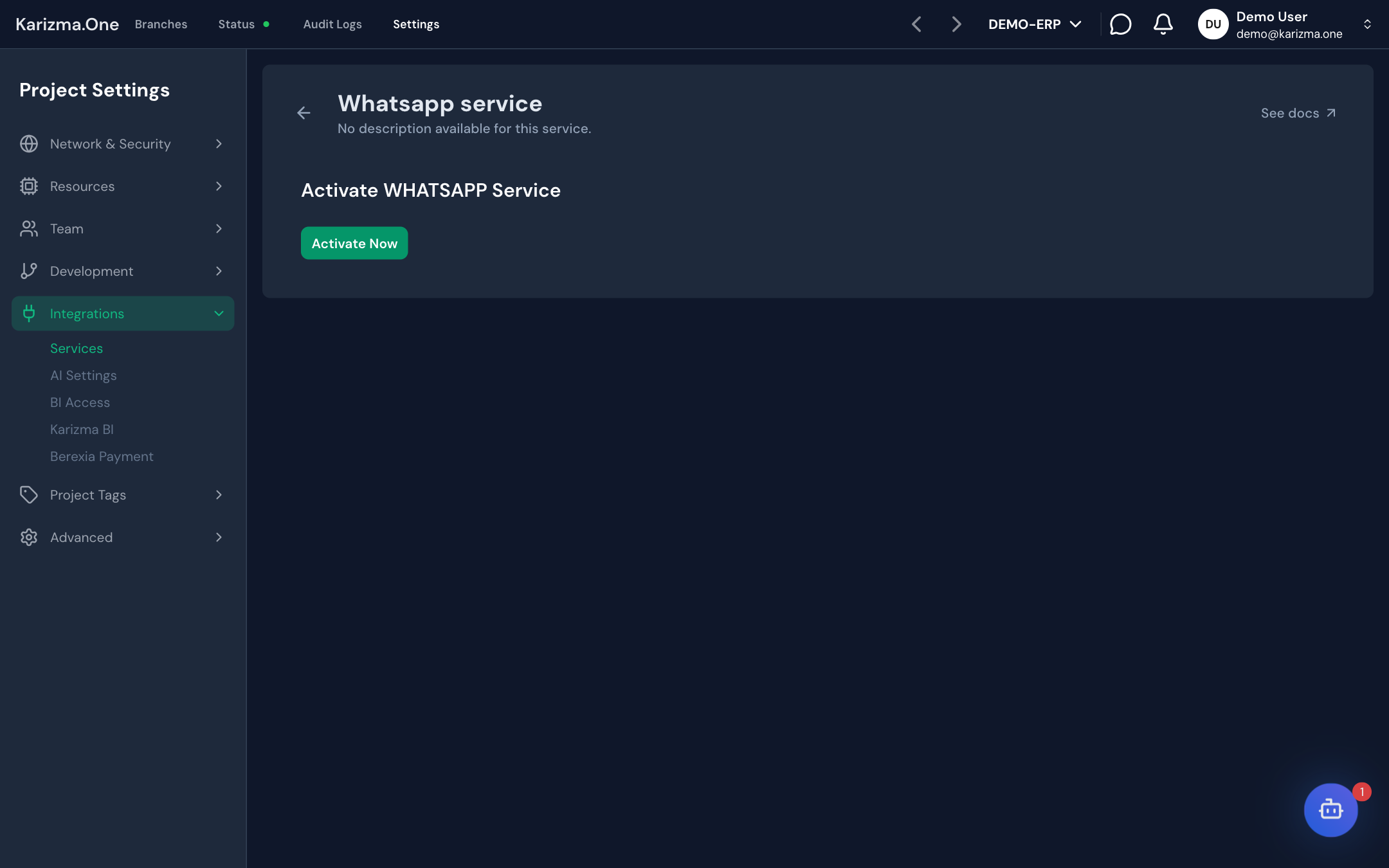
Until the service is connected, the page shows Connect to WhatsApp Business API.
- Click Connect Meta.
- A Facebook window opens: sign in, then pick or create your WhatsApp Business account and your phone number.
- When you finish, Karizma One saves the configuration and syncs it with Odoo.
Check the configuration
Once connected, the Configuration tab shows the number's state under Official WhatsApp Chatbot:
| State | Meaning |
|---|---|
| Connected & Verified | The number is registered and ready to send messages. |
| Not Registered / Pending | The number's registration is not finished. See Finish registering the number. |
The tab also shows the connection identifiers: WABA ID, Phone Number ID, Access Token (Show and Copy buttons) and Webhook Verify Token.
If messages are not sent although a card is on file at Meta, the card was often added to the ad account instead of the WhatsApp Business account. In Meta Business Suite, open Billing & payments, select your WhatsApp Business account (not the ad account) and check that the card is active and primary there.
Manage message templates
Meta requires approved templates for some messages. The Message Templates tab lists them with their name, category, language and status.
- Sync Templates fetches your templates' approval status from Meta.
- Create Template opens the creation form.
To create a template:
- Click Create Template.
- Fill in Display Name and Technical Name (the technical name cannot be changed afterwards).
- Pick the Language (English, French, Arabic or Spanish) and the Category (Marketing, Utility or Authentication).
- Write the Message Body and, if needed, a header (Header Text) and a footer (Footer Text).
- Optionally add Buttons: quick reply, link (static or dynamic) or phone number.
- Click Save Template.
If Meta rejects a template, open it to read why (Rejection Reason).

Finish registering the number
If the state stays Not Registered / Pending, Meta rejected the two-factor PIN generated automatically. This happens when a 6-digit PIN was already set on the number in WhatsApp Manager.
- Open the Advanced Settings tab.
- Enter the number's 6-digit PIN.
- Click Register Number.
The Advanced Settings tab also shows the Stored 2FA PIN, the PIN saved for this number.
Disconnect WhatsApp
Click Disconnect WhatsApp, then confirm. Disconnecting deregisters your number at Meta.
Before disconnecting, copy the PIN shown in Advanced Settings: you will need it to register the number again.
See also
- MCP to work with Odoo from the Karizma WhatsApp chatbot.
- Services overview for purchase and credits.